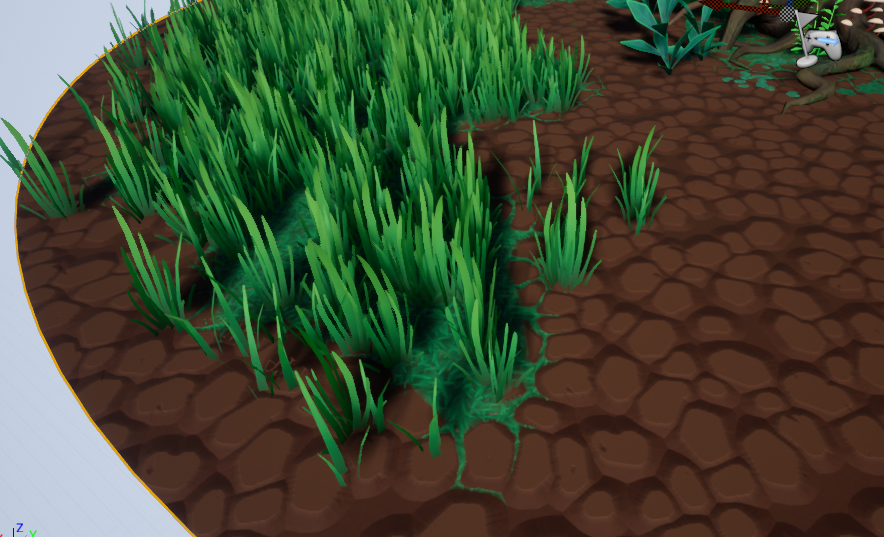
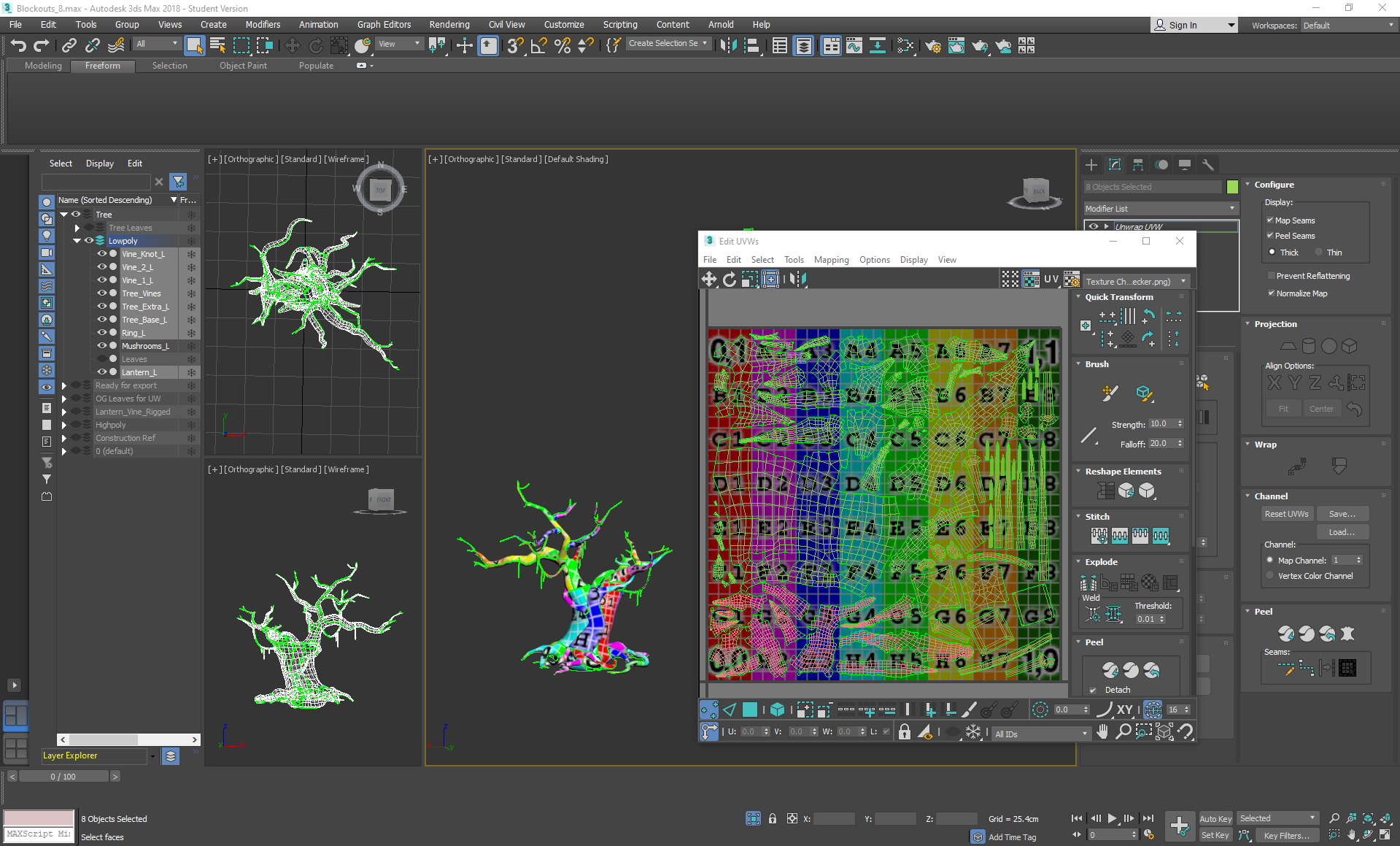
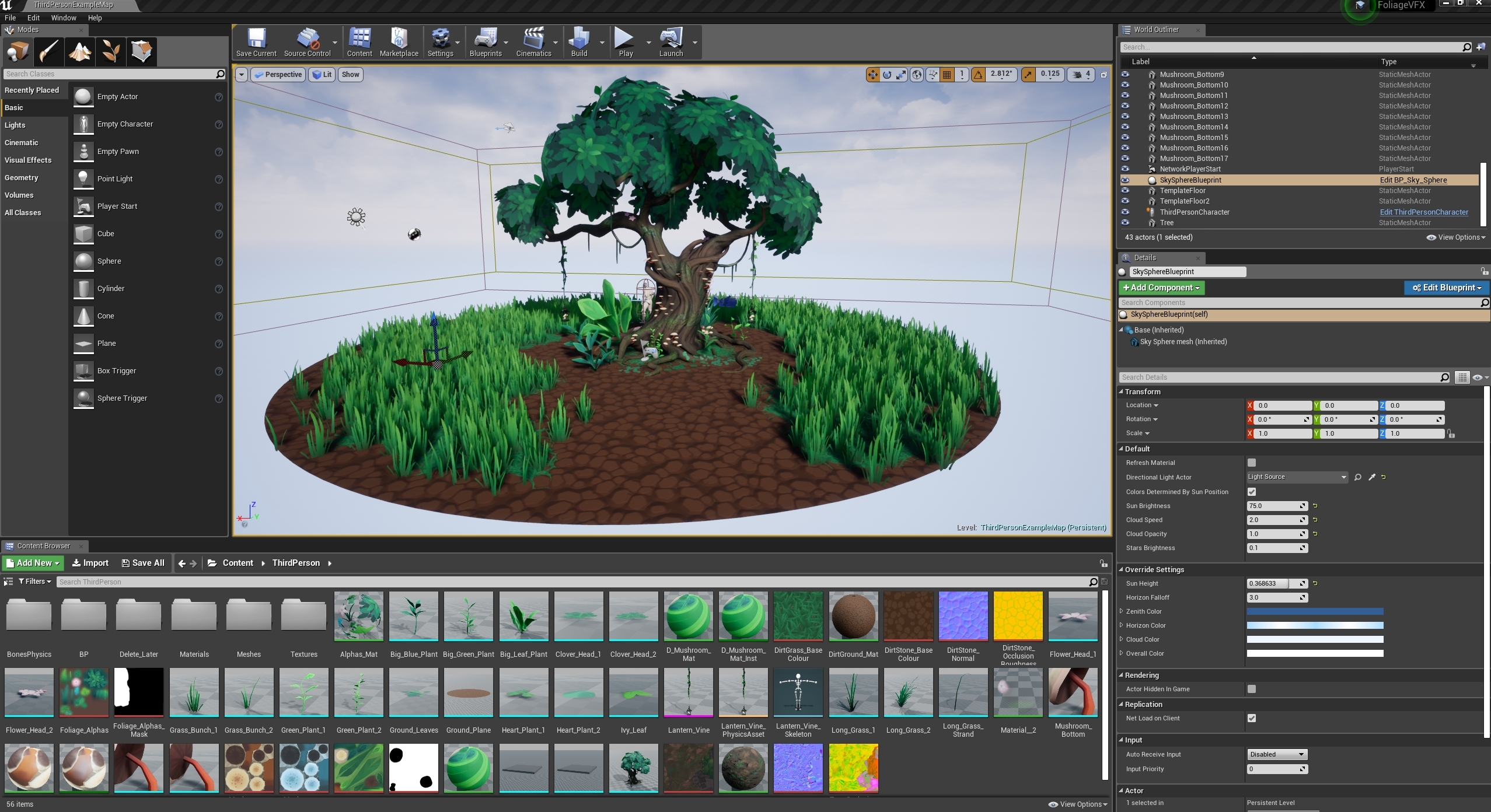
On Friday I brought everything together into the scene:
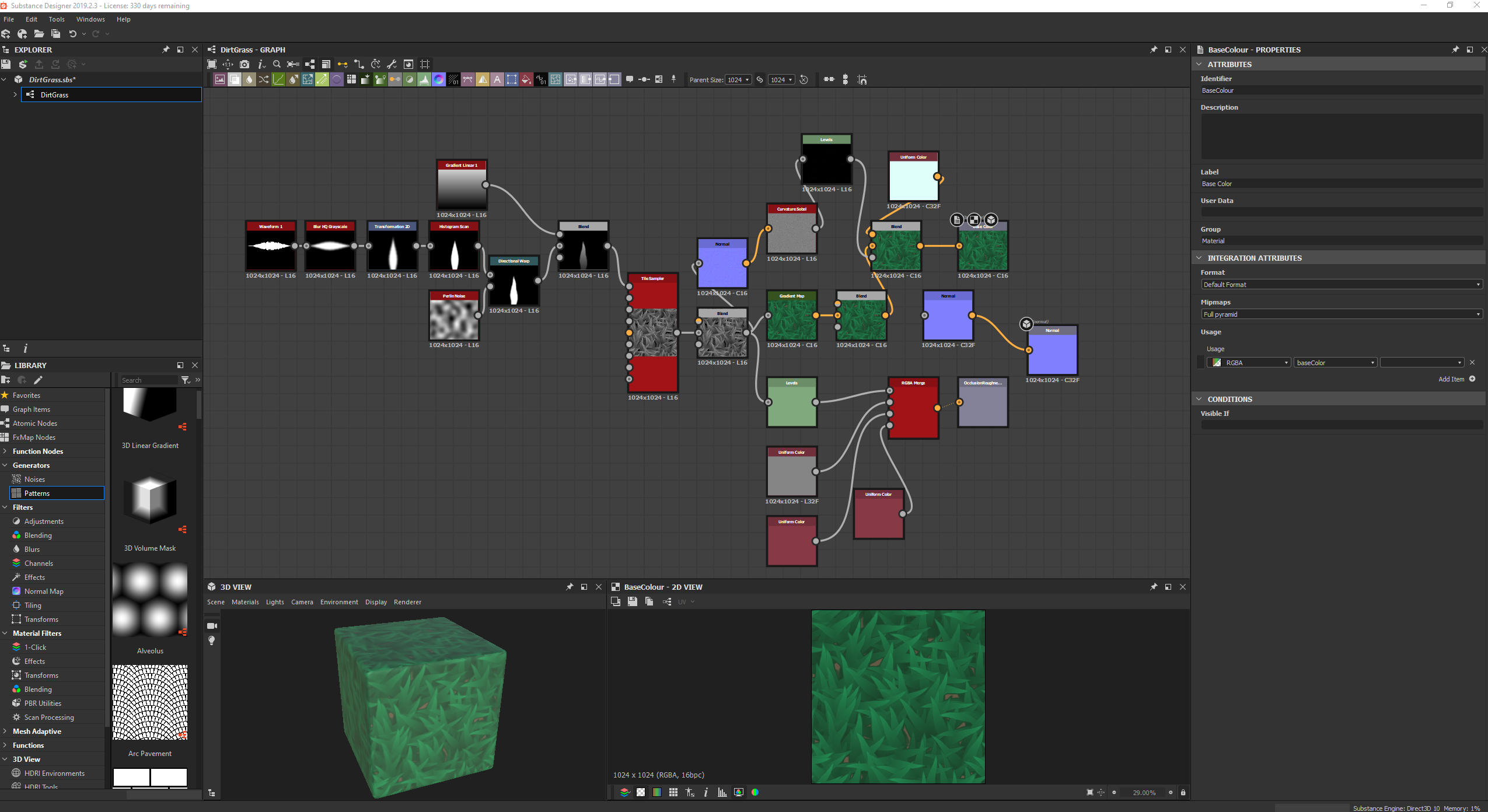
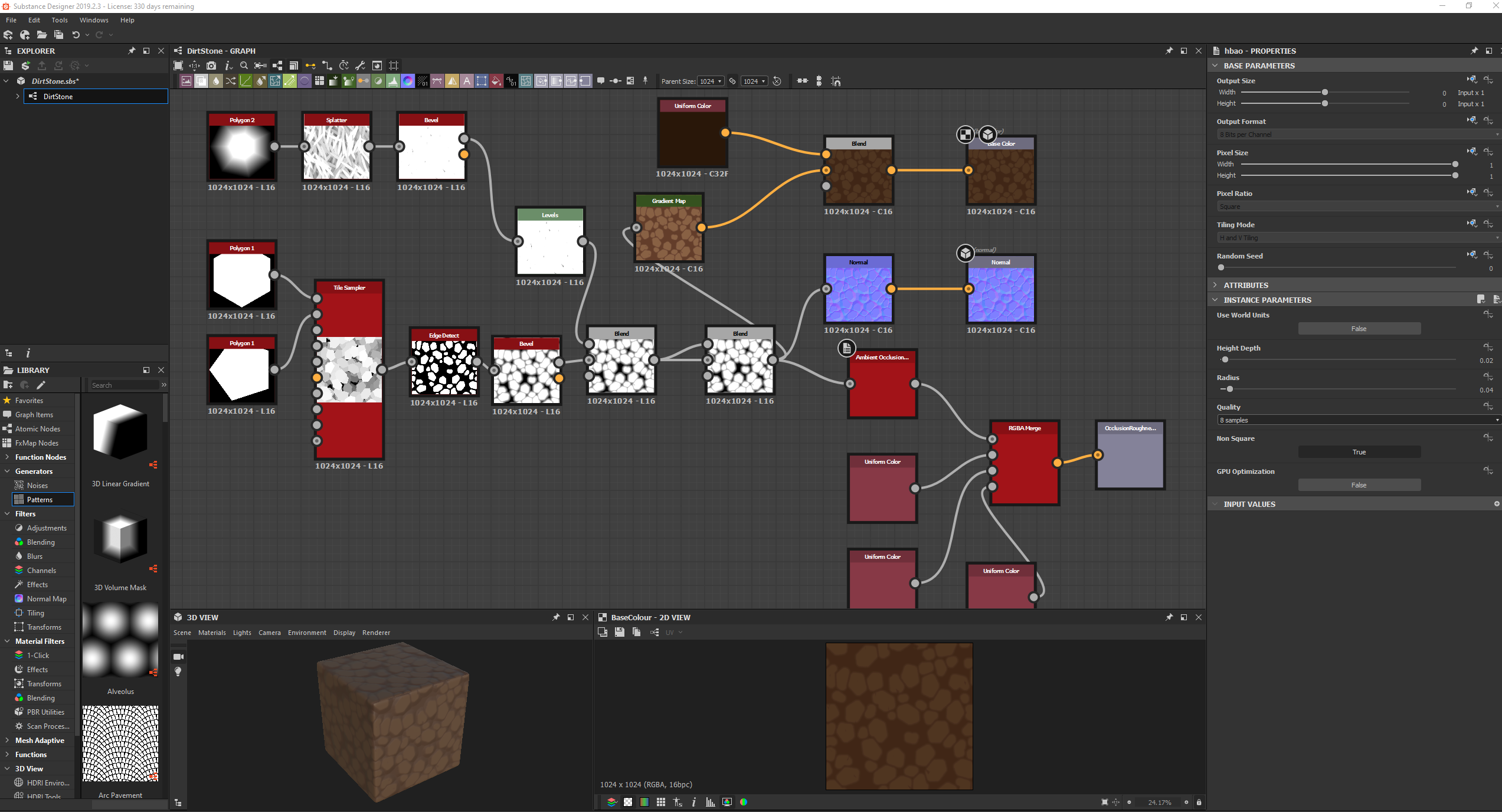
Before doing this however, I quickly compiled together 2 tiling textures in substance designer, a dirt rock texture and a grass texture:
To save texture space for other things, I had to scrap the AO/MR maps for the grass and add that information in the material editor instead.
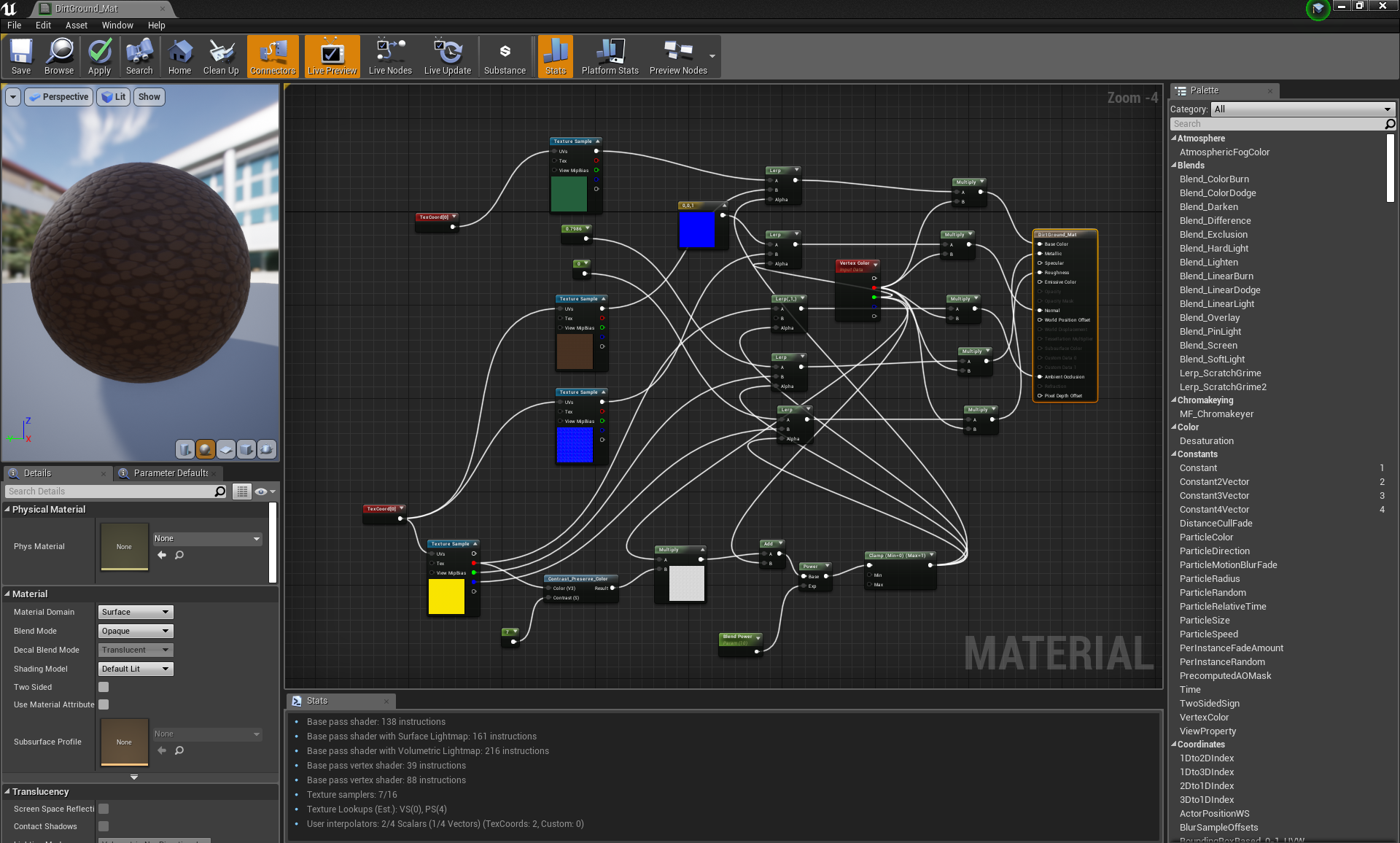
In UE4 material editor I then combined the two textures in perpetration for vertex painting. I also added the AO map for the dirt stones into the equation, in place of a height map (to save texture space). I added a contrast filter to it and used it to identify where the gaps between stones were, so that I could gradient out the grass through the cracks for a more realistic/immersive effect:
Showing posts with label Week 2. Show all posts
Saturday, November 30, 2019
Friday, November 29, 2019
Foliage VFX: Week 2 Thursday
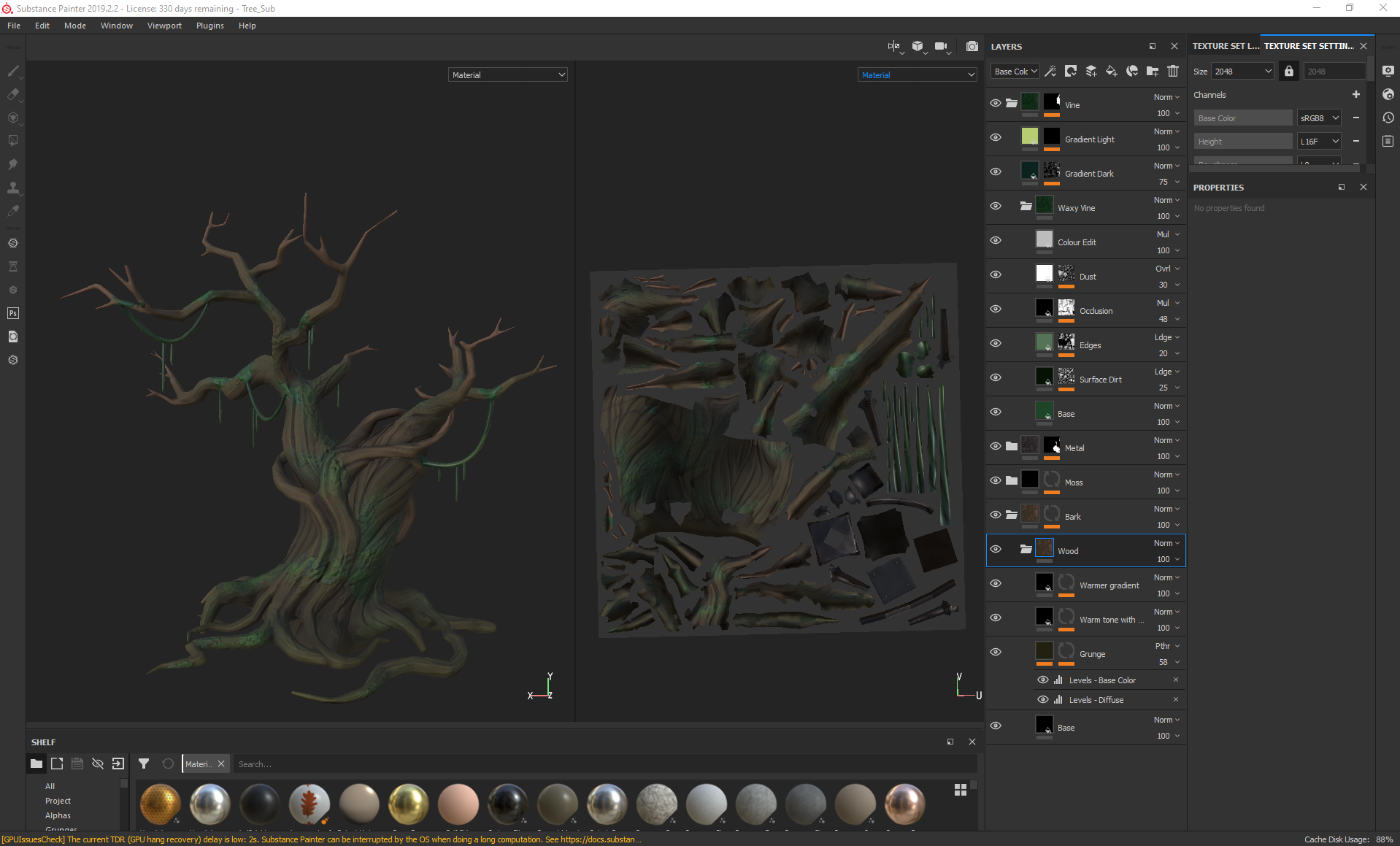
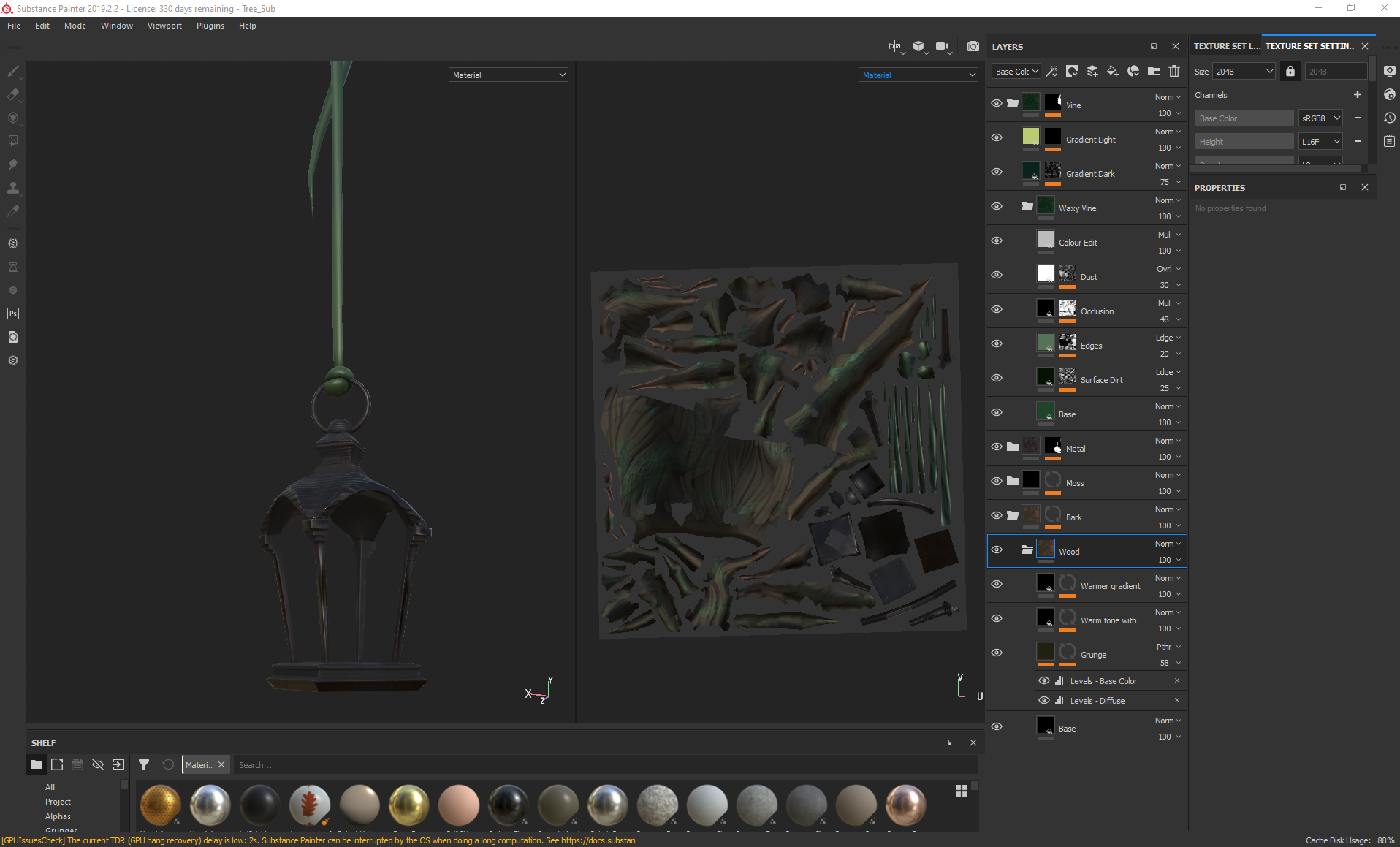
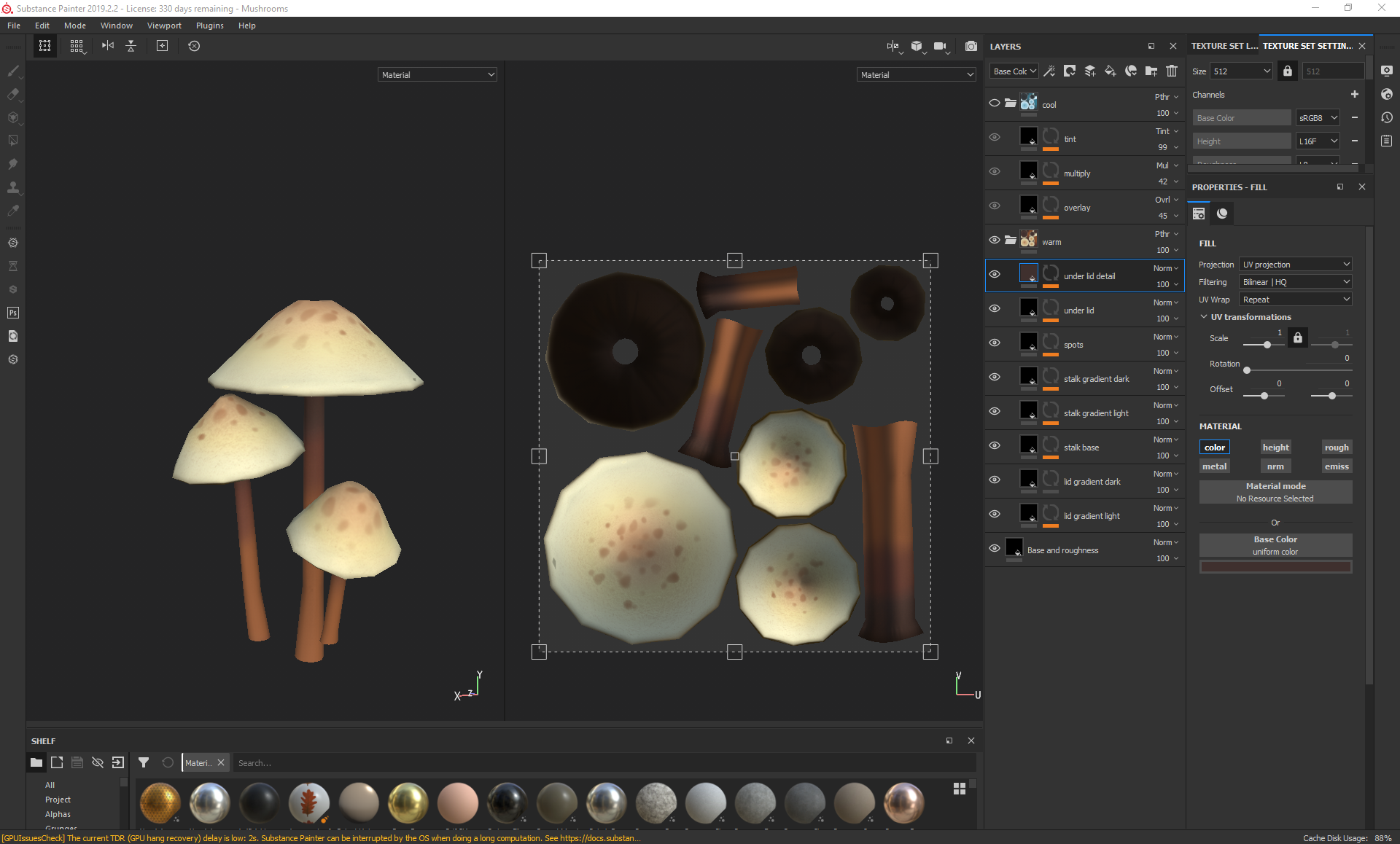
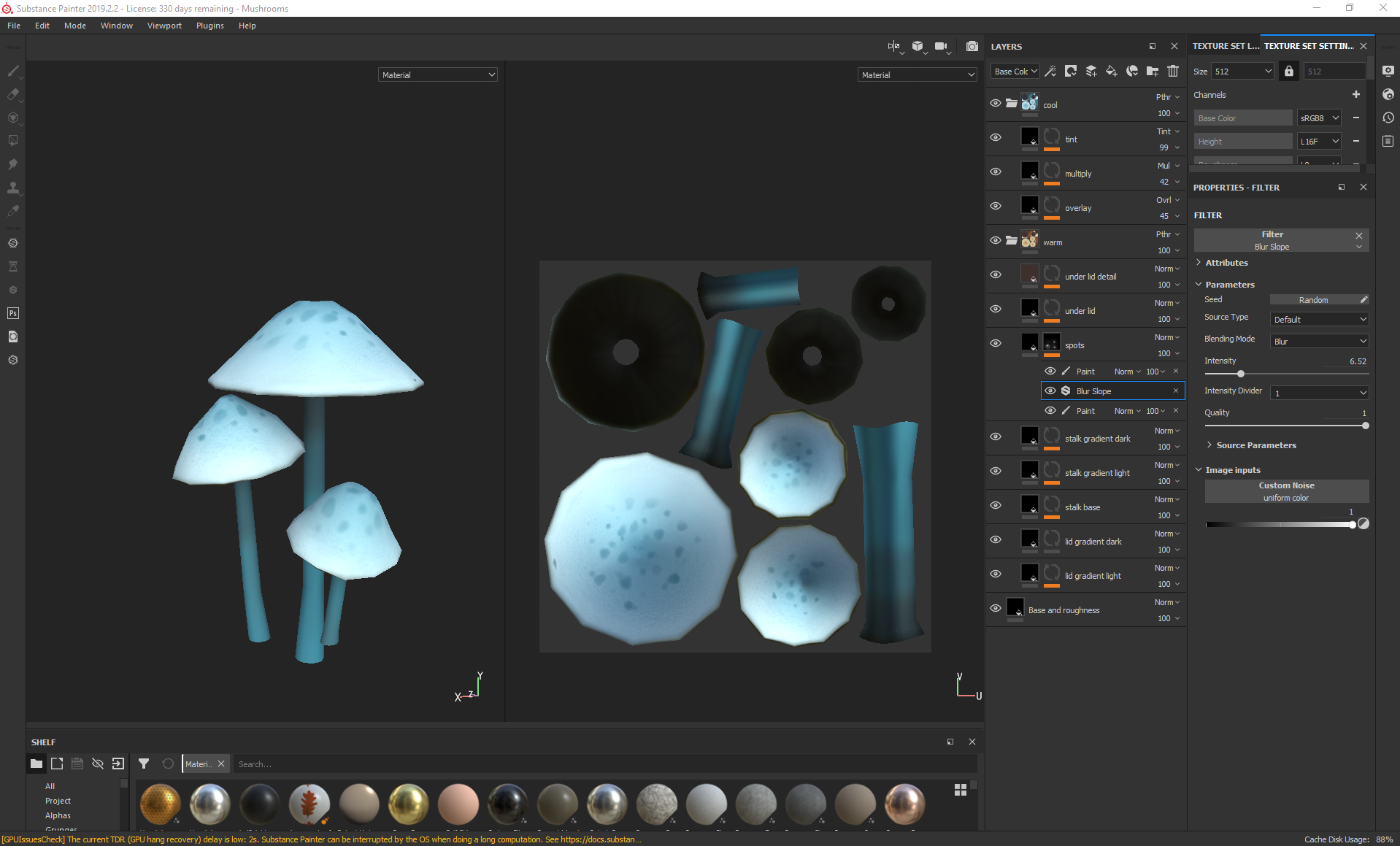
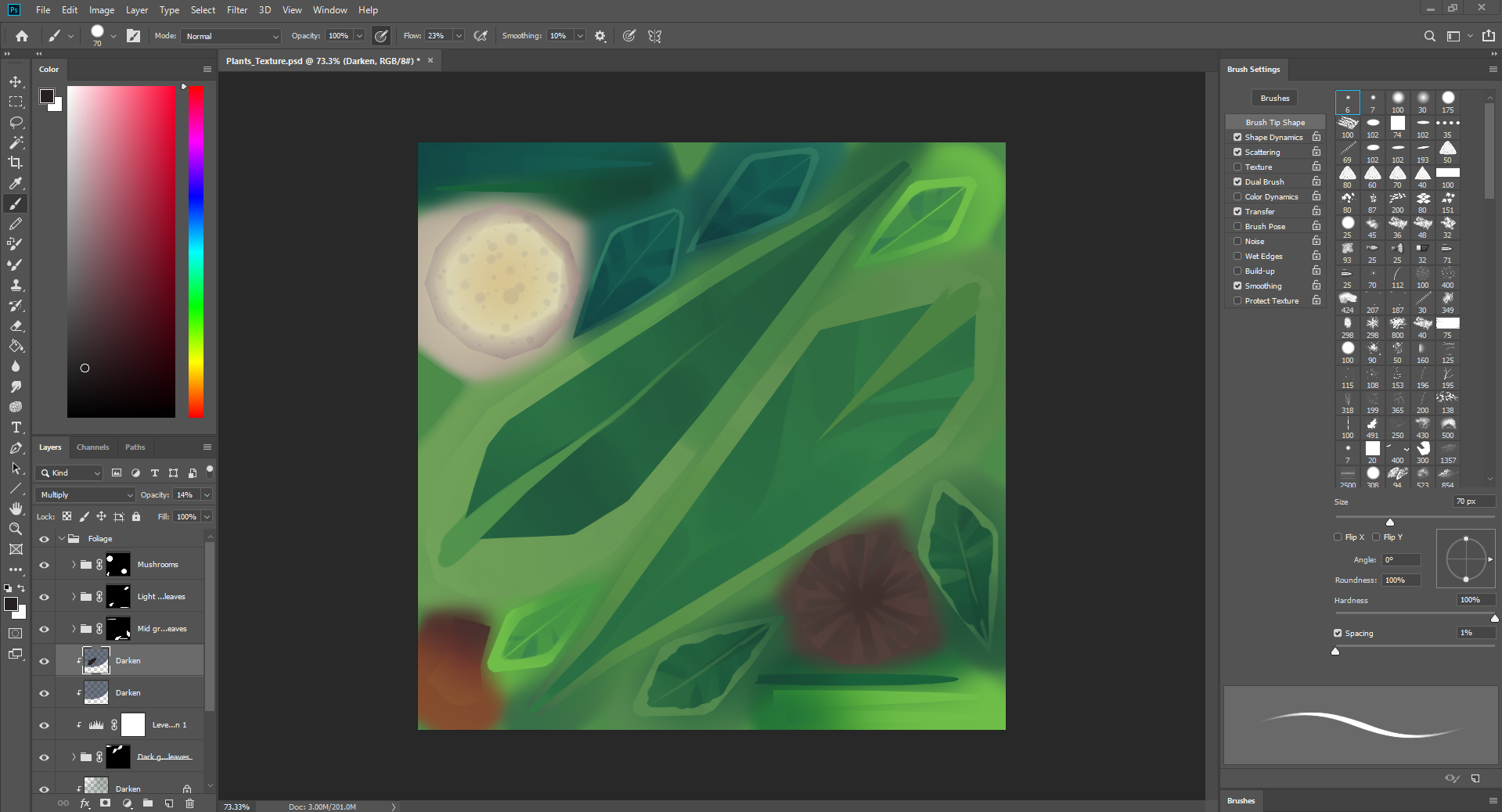
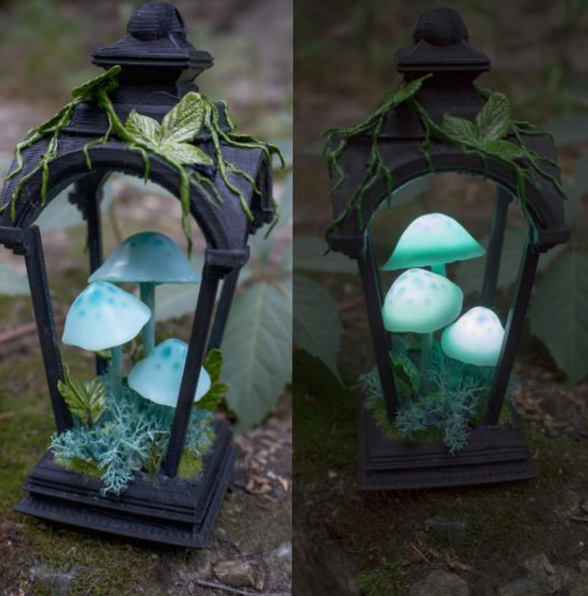
On Thursday I began texturing everything, starting with the plants in photoshop and ending with the tree and lantern in substance painter, trying to maintain a similar style throughout that matched the two concepts I was referencing:
For the tree I started with a green toned base colour, then added grunge through editing the levels to emphasise the cracks. Over this, I added a warmer brown tone using the curvature map with a levels edit as a bitmap mask, so that the green would still be seen in some sharper areas. Over that, I used a mask editor and a soft brush to paint on even brighter and warmer areas to give the tree more life and colour variation, all the while making sure that none of the other layers were interfering too much with the roughness of the bark. Later, I also added a mask editor to add a purple hue to the cracks and ao to add more depth to the tree.
For the moss, I used a combination of the artistic heavy sponge and blur slope to go over the areas where I had added rough moss details in the sculpt, then going over the mask in a few different hues and values to create variety in the moss colour.
With the lantern metal, I started with a base colour with metalness and a little roughness to represent what the base coat would have been like, then added some dirt/dust roughness over the top and some bumps to make the metal look more worn. I also added edge highlights and dirt occlusion for the areas that would naturally collect dust. After this, I added extra height detail using black and white striped patterns using a mixture of planar projection and tri planar projection so that the lines would meet correctly and loop around, ignoring any seams.
The vines were also fairly straightforward, with me focusing on the base colour, slight surface dust/dirt, edge highlights, occlusion and colour gradients.
For the mushrooms, I focused on following the level of detail as the rest of the foliage and stuck to painting it in with a soft brush rather than generating anything, although I did add some extra details in the spots, where I used a blur slope to add some tiny specks in the gradient of the lid.
I then created another folder with some colour edits for my later vfx in which the mushrooms would change colour when the character is close and exported all of the substance painter files as targas.
For the plants, to follow the style of the concept, I avoided rendering too much detail into the plants and instead focused on lasso tooling in bold colour changes for the edges of the plants and the stalks, with subtle gradients throughout. for this, I mostly used a basic hard round brush with varying levels of flow and pen pressure and a soft brush for gradients.
For the tree I started with a green toned base colour, then added grunge through editing the levels to emphasise the cracks. Over this, I added a warmer brown tone using the curvature map with a levels edit as a bitmap mask, so that the green would still be seen in some sharper areas. Over that, I used a mask editor and a soft brush to paint on even brighter and warmer areas to give the tree more life and colour variation, all the while making sure that none of the other layers were interfering too much with the roughness of the bark. Later, I also added a mask editor to add a purple hue to the cracks and ao to add more depth to the tree.
For the moss, I used a combination of the artistic heavy sponge and blur slope to go over the areas where I had added rough moss details in the sculpt, then going over the mask in a few different hues and values to create variety in the moss colour.
With the lantern metal, I started with a base colour with metalness and a little roughness to represent what the base coat would have been like, then added some dirt/dust roughness over the top and some bumps to make the metal look more worn. I also added edge highlights and dirt occlusion for the areas that would naturally collect dust. After this, I added extra height detail using black and white striped patterns using a mixture of planar projection and tri planar projection so that the lines would meet correctly and loop around, ignoring any seams.
The vines were also fairly straightforward, with me focusing on the base colour, slight surface dust/dirt, edge highlights, occlusion and colour gradients.
For the mushrooms, I focused on following the level of detail as the rest of the foliage and stuck to painting it in with a soft brush rather than generating anything, although I did add some extra details in the spots, where I used a blur slope to add some tiny specks in the gradient of the lid.
I then created another folder with some colour edits for my later vfx in which the mushrooms would change colour when the character is close and exported all of the substance painter files as targas.
For the plants, to follow the style of the concept, I avoided rendering too much detail into the plants and instead focused on lasso tooling in bold colour changes for the edges of the plants and the stalks, with subtle gradients throughout. for this, I mostly used a basic hard round brush with varying levels of flow and pen pressure and a soft brush for gradients.
Thursday, November 28, 2019
Foliage VFX: Week 2 Wednesday
On Wednesday I unwrapped anything that hadn't already been unwrapped (in which my reference copies of the lowpoly plants came in handy) as well as the tree, keeping an eye on my texture budget and assigning maps accordingly. I mapped out a plan to use the following maps: 512 alphas, 256 mushrooms, 1024 tree + vines, 512 opaque plants, 512 tileable texture 1 and 512 tileable texture 2. This ate into my budget for additional maps a little bit, but I had accounted for that earlier by sacrificing some normal maps.
I tried to avoid leaving much unused texture space as I wasn't intending on modelling anything else after this.
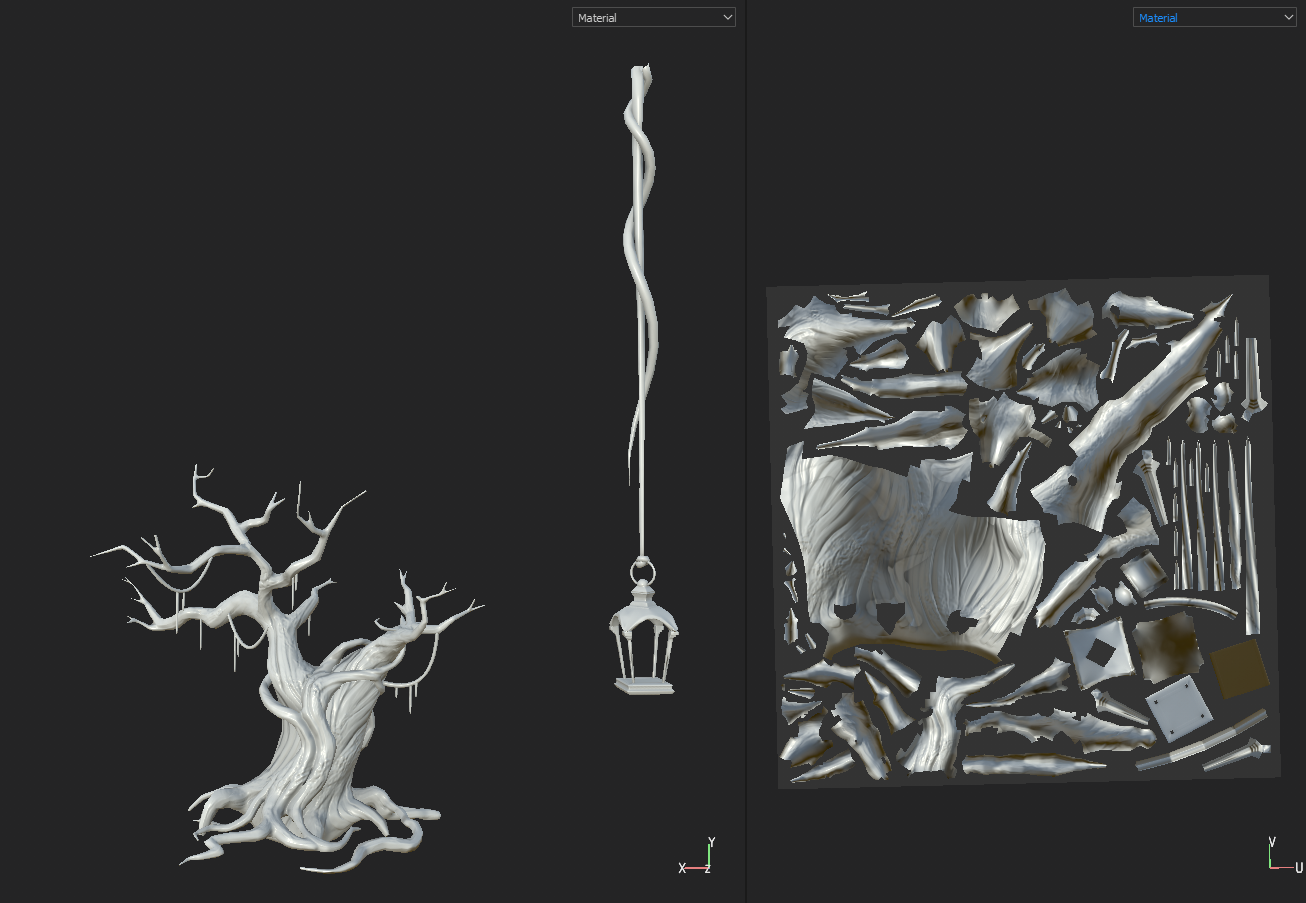
I exported the tree, lantern and vine into marmoset to bake normal maps without them printing onto each other, then placed them into substance painter ready for texturing:
I baked the lantern at a slightly higher resolution than the tree as I wanted it to be a bigger focus, but then resized it after texturing so that it would fit on the tree branches properly.
I exported the tree, lantern and vine into marmoset to bake normal maps without them printing onto each other, then placed them into substance painter ready for texturing:
I baked the lantern at a slightly higher resolution than the tree as I wanted it to be a bigger focus, but then resized it after texturing so that it would fit on the tree branches properly.
Wednesday, November 27, 2019
Foliage VFX: Week 2 Tuesday
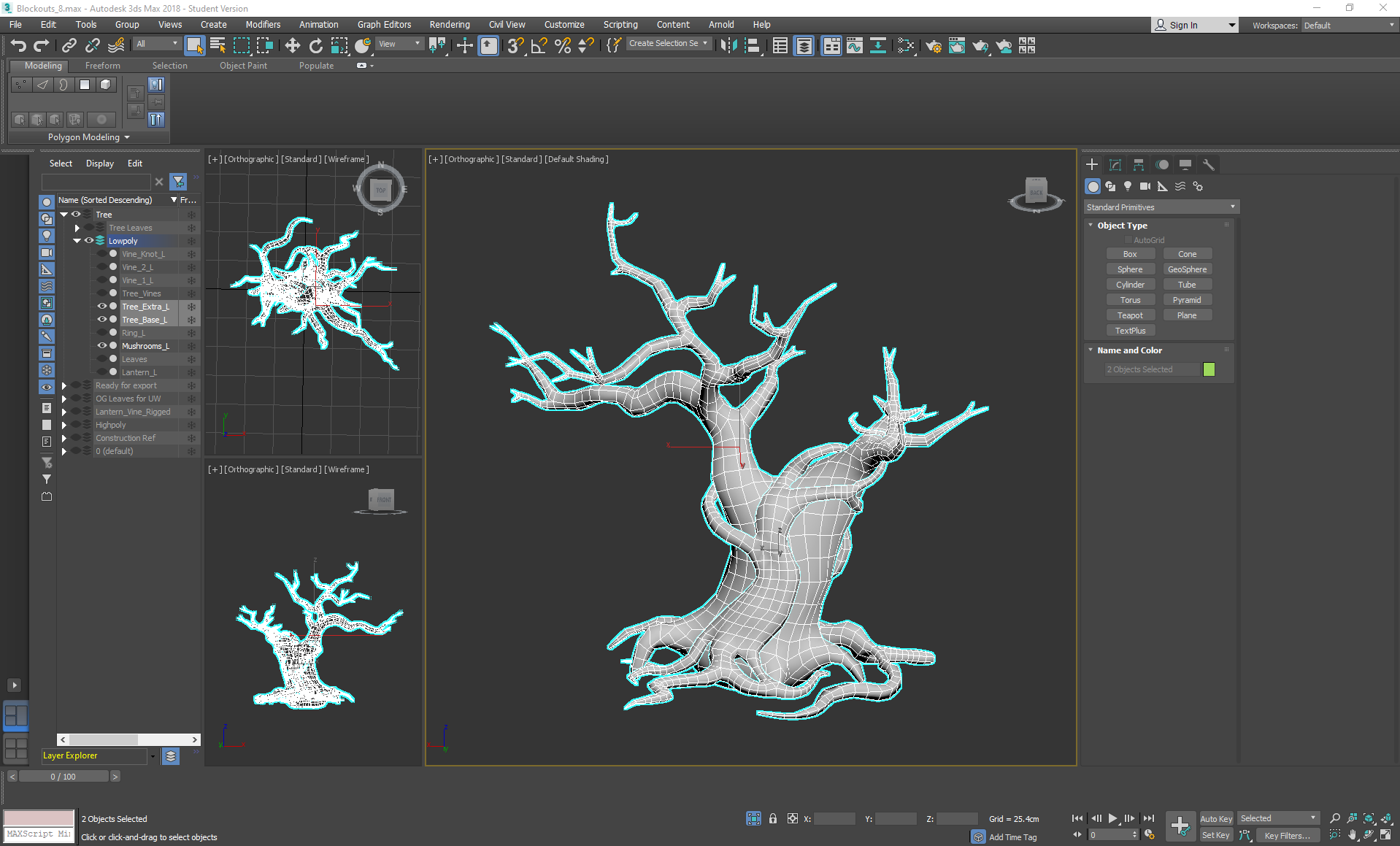
On Tuesday I went back to the tree and started the tedious task of re-topping, using a mixture of step build and strip modelling cylinders (then adding swift loops and conforming them to the highpoly surface), using the conform relax tool in some areas along the way to keep the geometry even. I did this to keep the surface as close to the high poly version as possible, while also saving as much time as possible.
Tuesday, November 26, 2019
Foliage VFX: Week 2 Monday
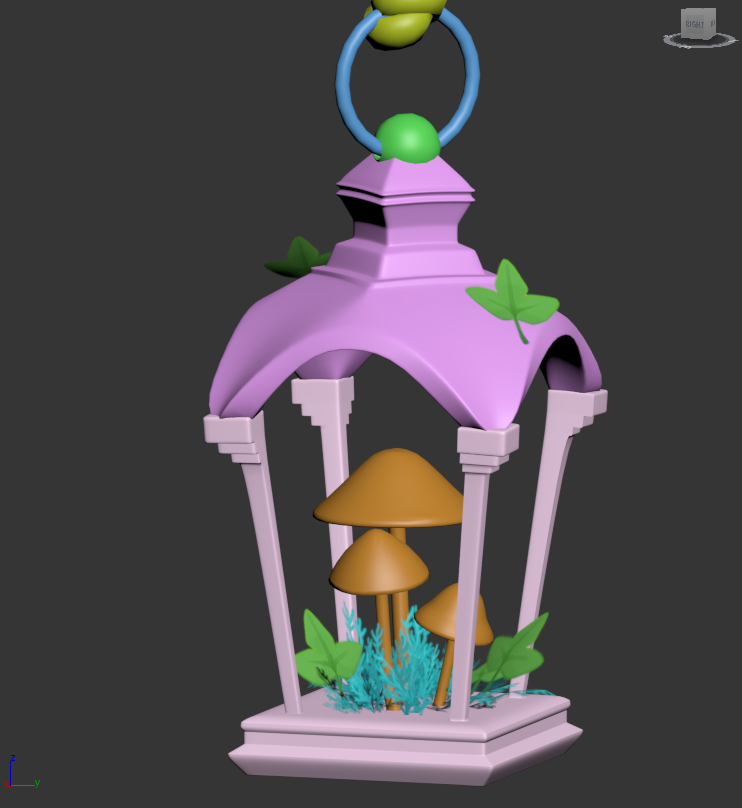
On Monday I decided to ignore the tree for a bit and to start focusing on the vine lanterns:
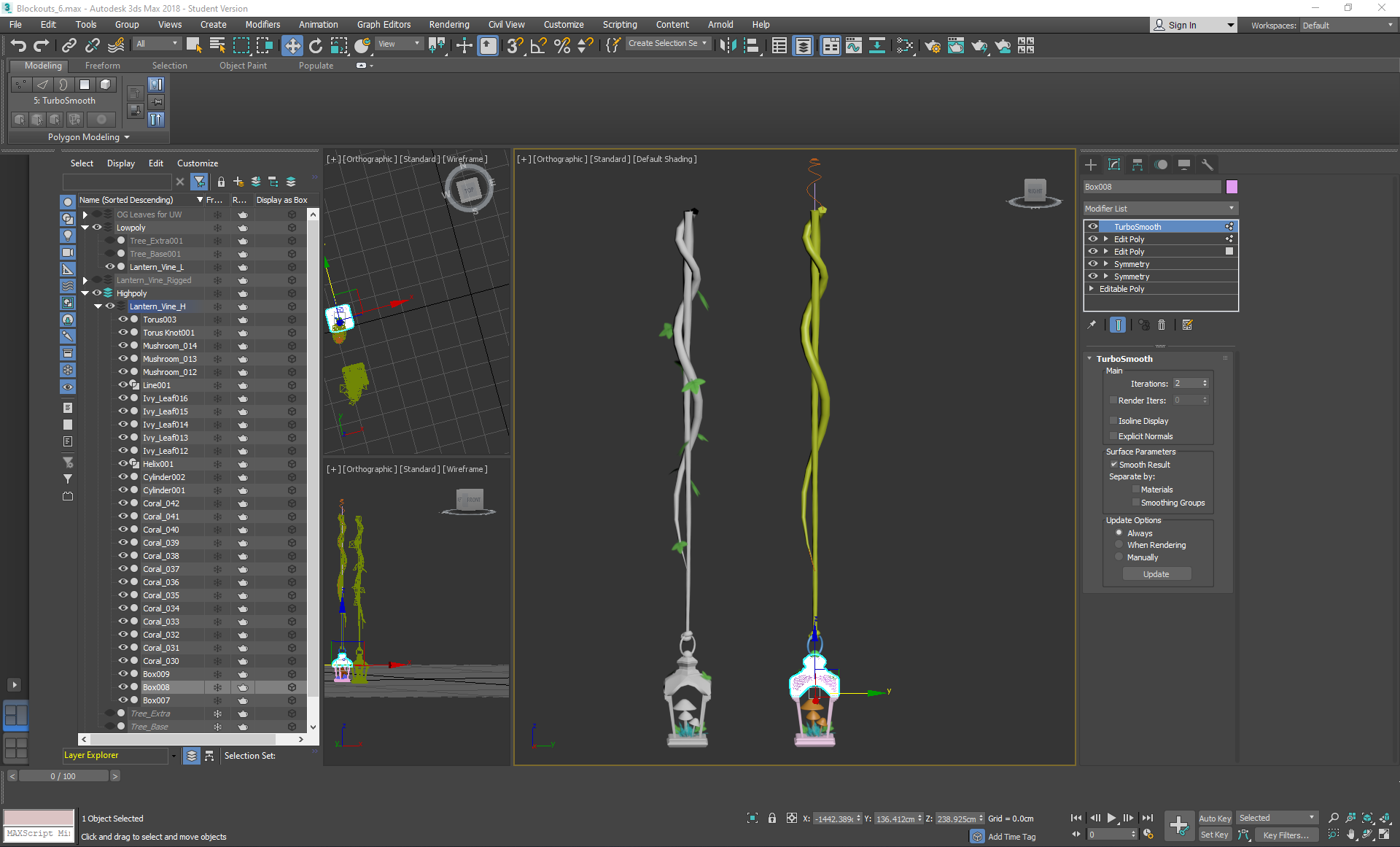
I used a lot of symmetry and box modelling to create a highpoly and lowpoly version of a lantern attached to a vine, using a line and helix splines on path deforming binding (WSM) modifiers to shape cylinders into a vine shape, then using the animation position constraint to attach leaves along them. I used a torus knot to create the knot at the end, and tried to position the metal ring so that it would come out of the knot in realistic areas rather than clipping straight through the flesh of it.
I intentionally rotated the top a little despite the reference I was using in order to create some more interest and contrast in the way that it was built:
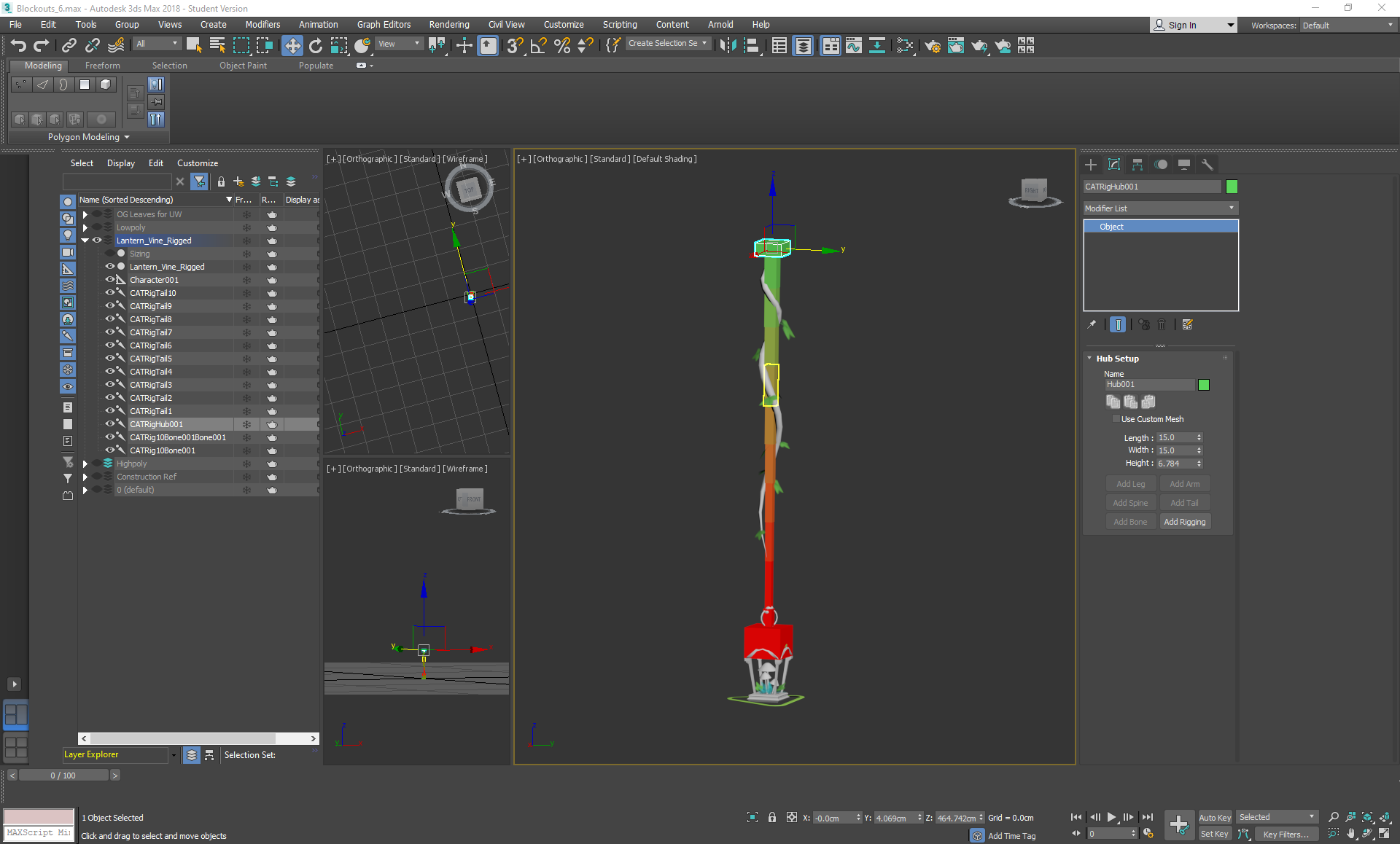
After this was completed, I then went on to create the bones of the vine, as I wanted it to have physics within the scene.
I followed this tutorial using CAT bones and rigging it to the mesh, then went back to it later in the week to follow their guide on exporting to UE4 and implementing a light.
I used a lot of symmetry and box modelling to create a highpoly and lowpoly version of a lantern attached to a vine, using a line and helix splines on path deforming binding (WSM) modifiers to shape cylinders into a vine shape, then using the animation position constraint to attach leaves along them. I used a torus knot to create the knot at the end, and tried to position the metal ring so that it would come out of the knot in realistic areas rather than clipping straight through the flesh of it.
I intentionally rotated the top a little despite the reference I was using in order to create some more interest and contrast in the way that it was built:
After this was completed, I then went on to create the bones of the vine, as I wanted it to have physics within the scene.
I followed this tutorial using CAT bones and rigging it to the mesh, then went back to it later in the week to follow their guide on exporting to UE4 and implementing a light.
Friday, November 1, 2019
Helmeted Character: Week 2 Friday
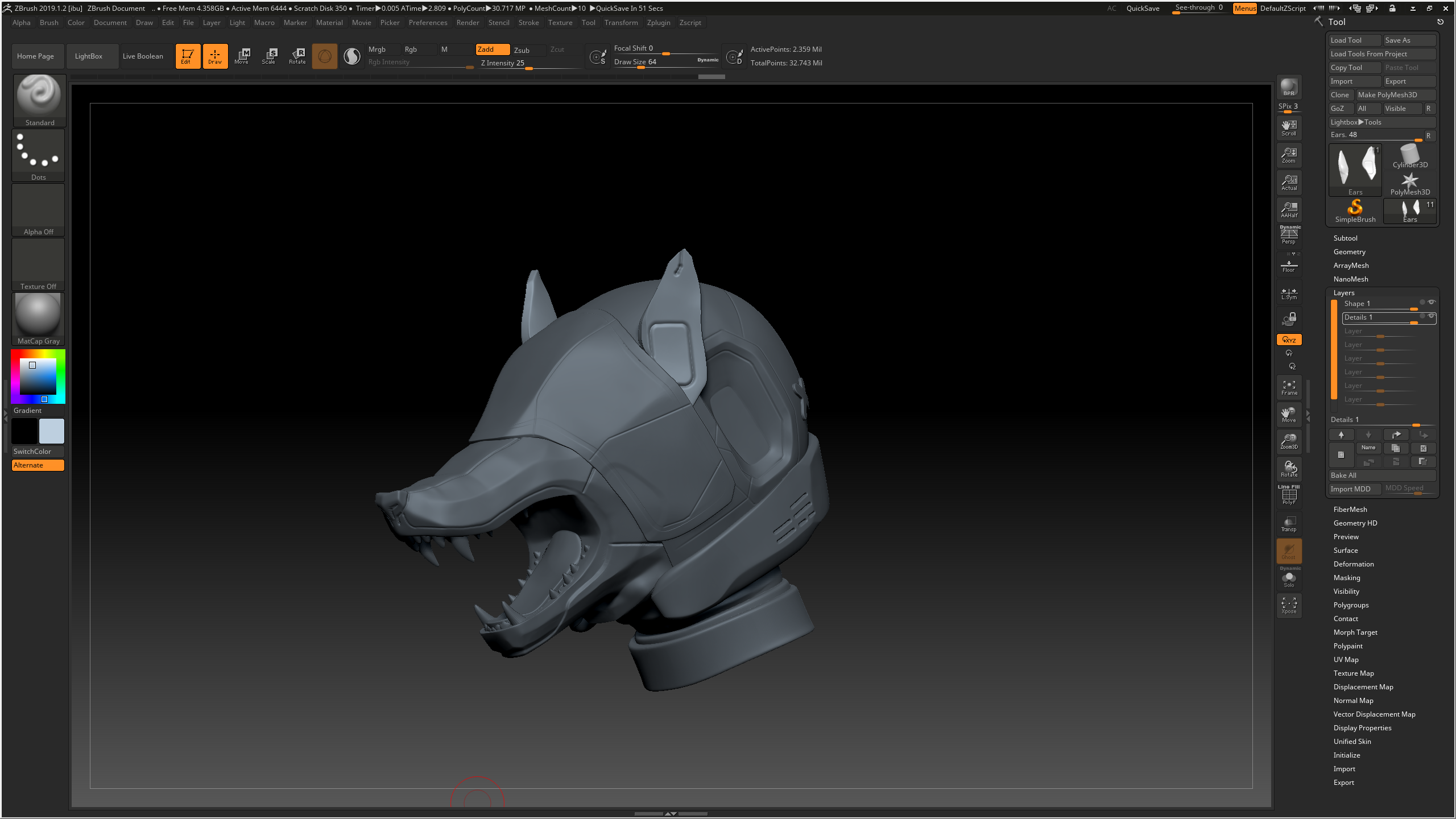
On Friday I started working on the Helmet in zbrush:
After subdividing the geometry and enabling the layer recording mode, I used the smooth tool to smooth down any unwanted sharp edges left behind by the turbosmooth while still keeping some edges on the snout for a more manmade effect. I used pinch, trim dynamic, flatten and hpolish to create more of a dramatic transition between different angles, furthering the man-made helmet vibe as opposed to a smooth organic shape. I used damstandard and slash on a higher subdivision level for any line indents, and used the planar tool to try and flatten the center of the concave areas. For the tongue and the 'X' marks, I masked off areas with the mask lasso and pen tools, then extracted them. The teeth were made from appended cones that were manipulated into shape through the move elastic tool and smooth, then duplicated and placed accordingly. I also masked off an area around the mouth for the indented markings, and used the layer tool to subtract a layer around the mouth.
Thursday, October 31, 2019
Helmeted Character: Week 2 Thursday
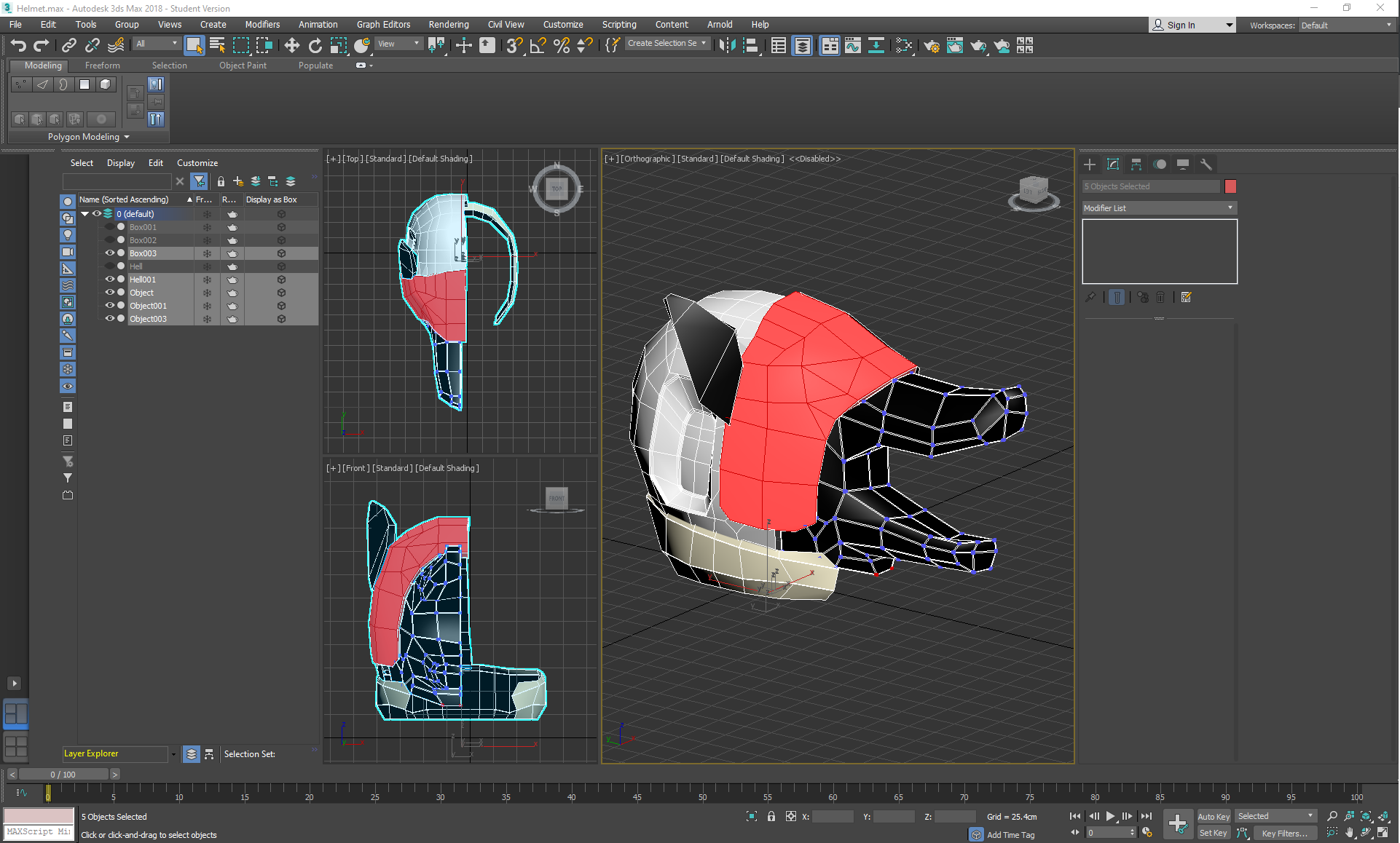
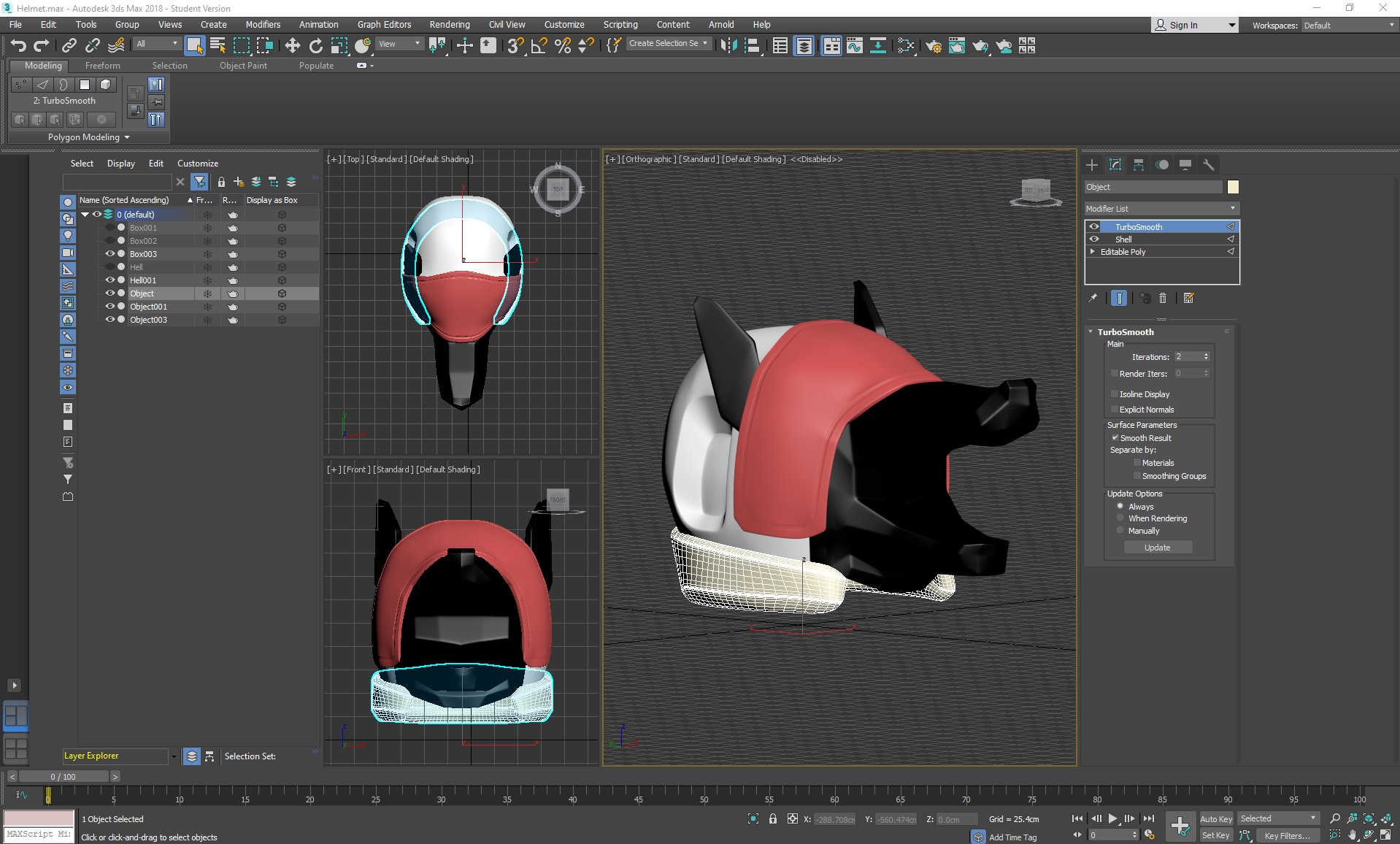
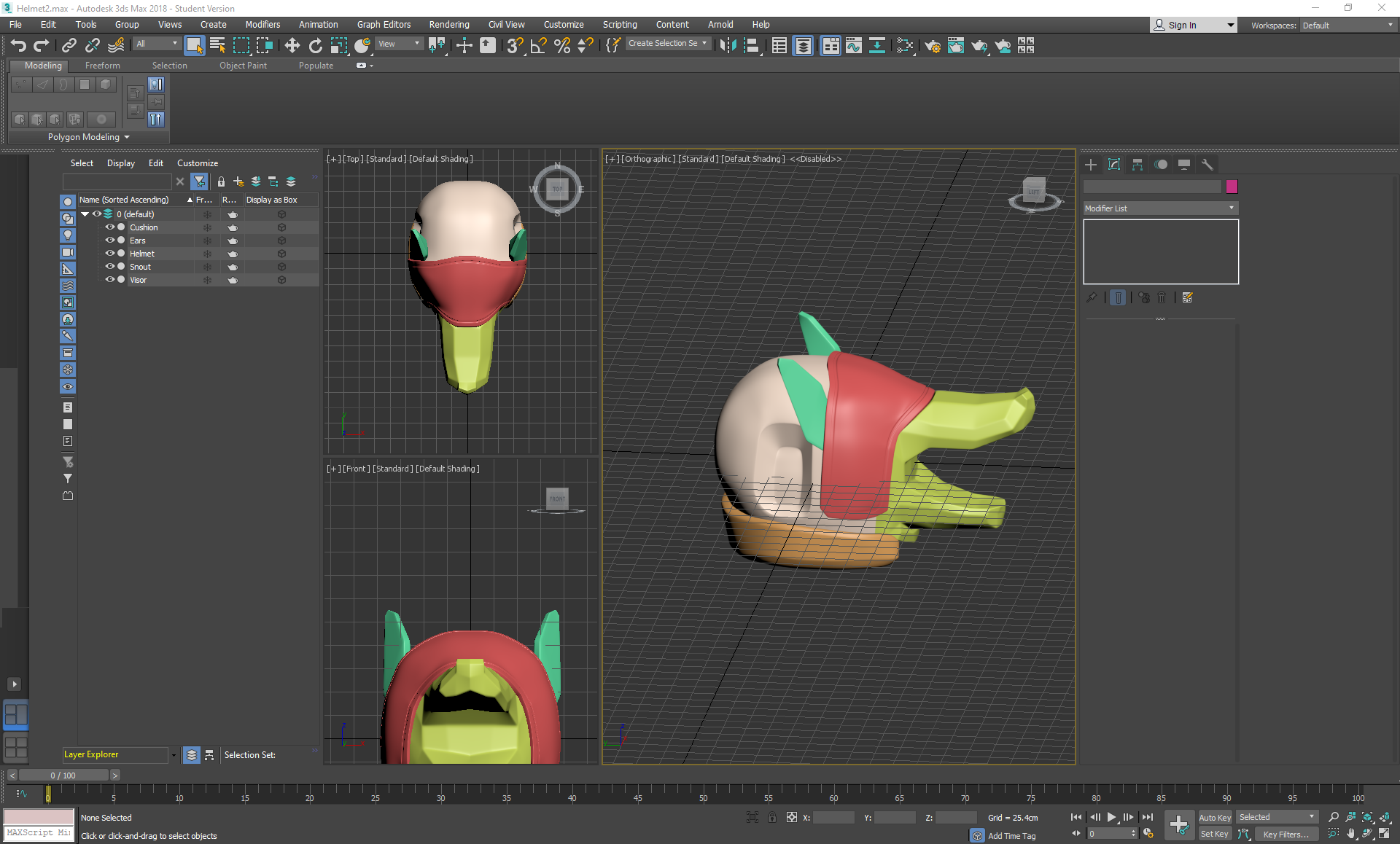
On Thursday I started working on the Helmet in 3ds max, making a turbosmoothed blockout before exporting it into zbrush to sculpt further:
I box modelled the majority of the helmet by spherifying a cube, using inset and extruding out areas like the snout, visor, and concave areas. I strip modelled out the cushioned area, detached it and then applied a shell modifier to add thickness. I then applied symmetry and turbosmooth; strategically placing swiftloops and chamfers in areas that needed sharper edges. Finally, I collapsed everything, deleted any excess backup cloned versions and exported each of the parts in a bundled .obj file so that I could work on them separately as subtools in zbrush.
Wednesday, October 30, 2019
Helmeted Character: Week 2 Wednesday
At this point I decided to take another shot at Marvelous, getting as far as learning how to set custom arrangement points and bounding volumes to my mesh. I decided to test a default long sleeve shirt on my mesh, with the understanding that the character will be wearing a long sleeve jacket and a shirt by the end of the project. I immediately encountered a problem in which the sleeves clipped outside of the arms and wouldn't preposition themselves anywhere else mo matter how hard I tugged at them.
because of this, I decided to ditch marvelous this time and go back to what I was more comfortable with for this project.
Tuesday, October 29, 2019
Helmeted Character: Week 2 Tuesday
WIP
On Tuesday I started sculpting the gloves, using the same techniques I had learnt from the shoes to mask off areas and sculpt in layers of detail for the leather shapes. I decided to slightly edit the concept image to add more interest to the gloves, with varying layers based on biking gloves:
Monday, October 28, 2019
Helmeted Character: Week 2 Monday
I continued sculpting the shoes on monday, getting further into the details of the sculpt.
Once again, I used layers to add stitching and other surface details. To optimize this, I subdivided before entering layer mode so that I would still be able to access my lower subdivisions while sculpting. I used the IMM curve strap to make a blockout of one half of the laces, then carefully moved them into place with the move elastic tool and pinch.
For these shoes, I mostly referenced these images:
Once again, I used layers to add stitching and other surface details. To optimize this, I subdivided before entering layer mode so that I would still be able to access my lower subdivisions while sculpting. I used the IMM curve strap to make a blockout of one half of the laces, then carefully moved them into place with the move elastic tool and pinch.
For these shoes, I mostly referenced these images:
Friday, October 11, 2019
Water VFX Brief: Week 2 Friday
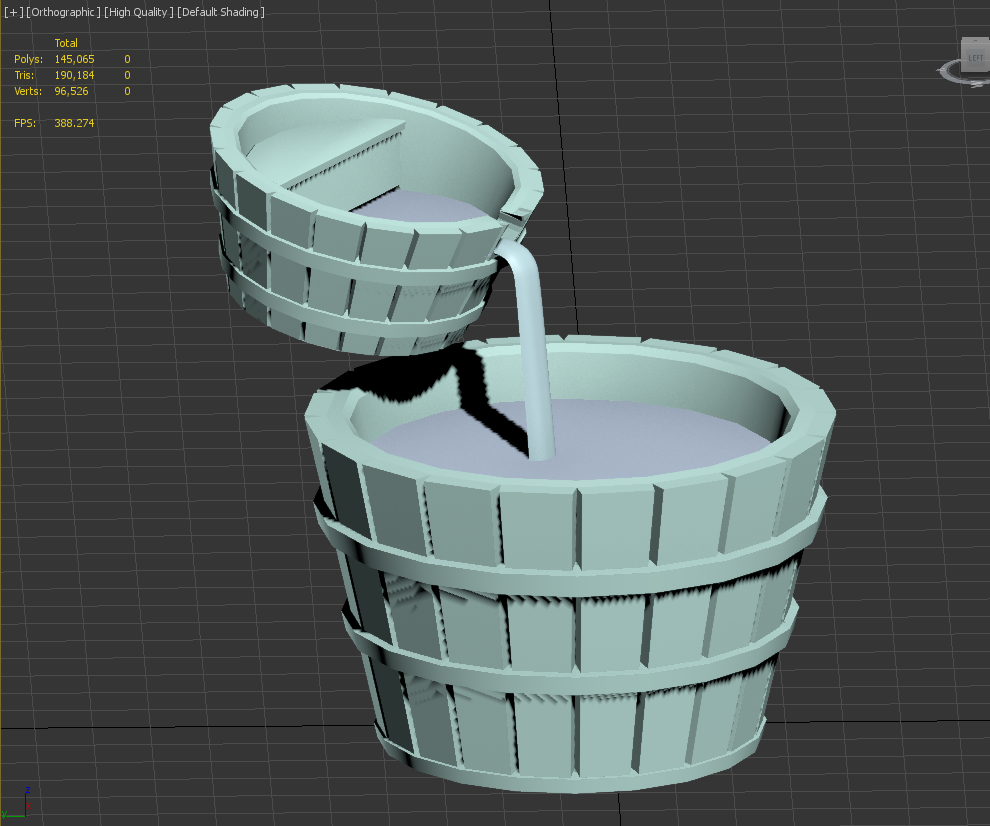
Now that all of the water was out of the way, I started working on the water feature model itself.
I wanted to combine these aspects into a cute stylised plinth:


The style was based somewhat on this:


Simple stylised texturing, with some some bold, chunky details sculpted in and PBR used to a realistic degree.

I started with the lowpoly sculpts of the buckets and the water, which I then turbosmoothed to allow for more dynamic fluidity in the material editor later.
I wanted to combine these aspects into a cute stylised plinth:


The style was based somewhat on this:


Simple stylised texturing, with some some bold, chunky details sculpted in and PBR used to a realistic degree.

I started with the lowpoly sculpts of the buckets and the water, which I then turbosmoothed to allow for more dynamic fluidity in the material editor later.
Thursday, October 10, 2019
Water VFX Brief: Week 2 Thursday
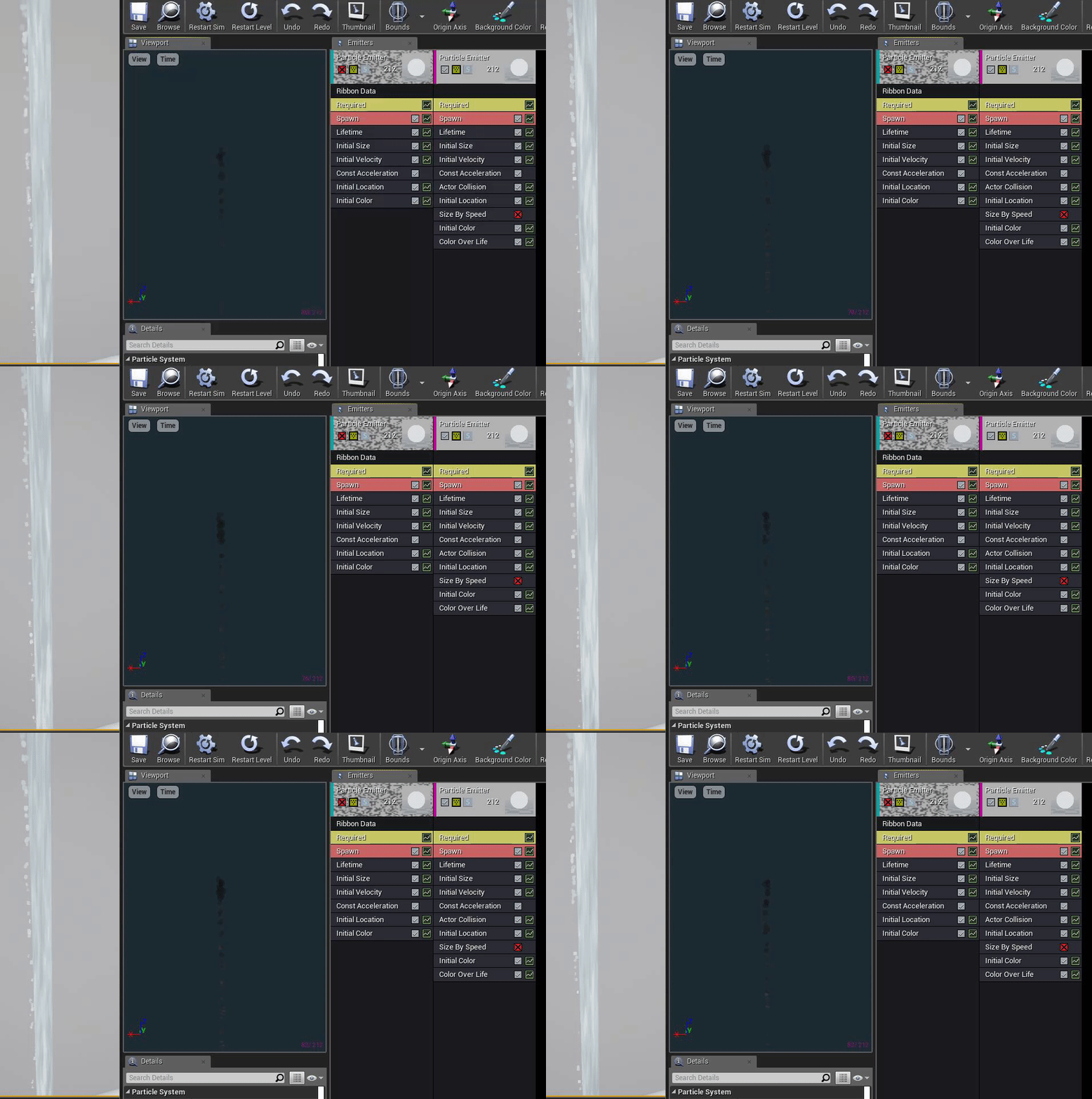
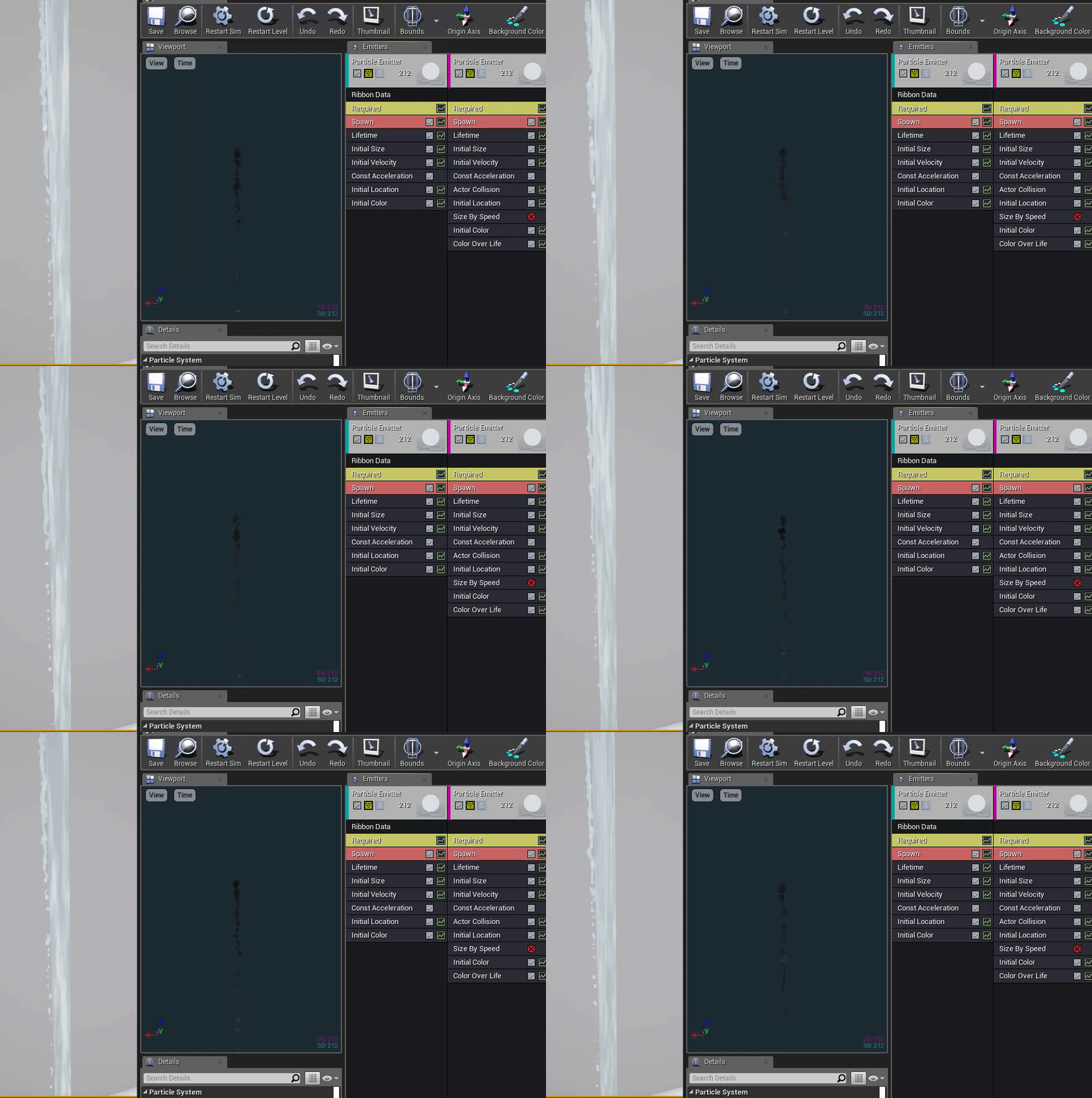
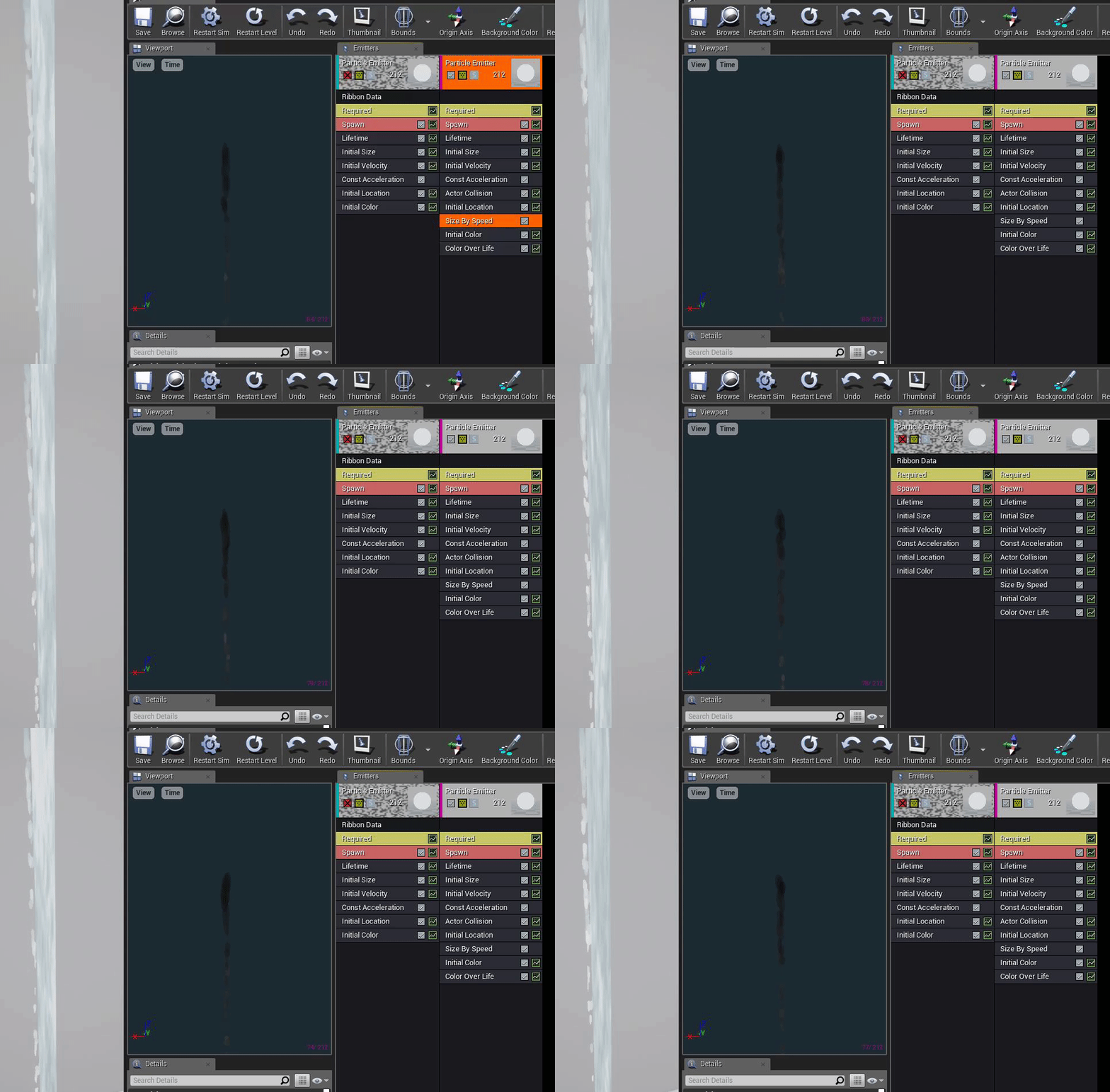
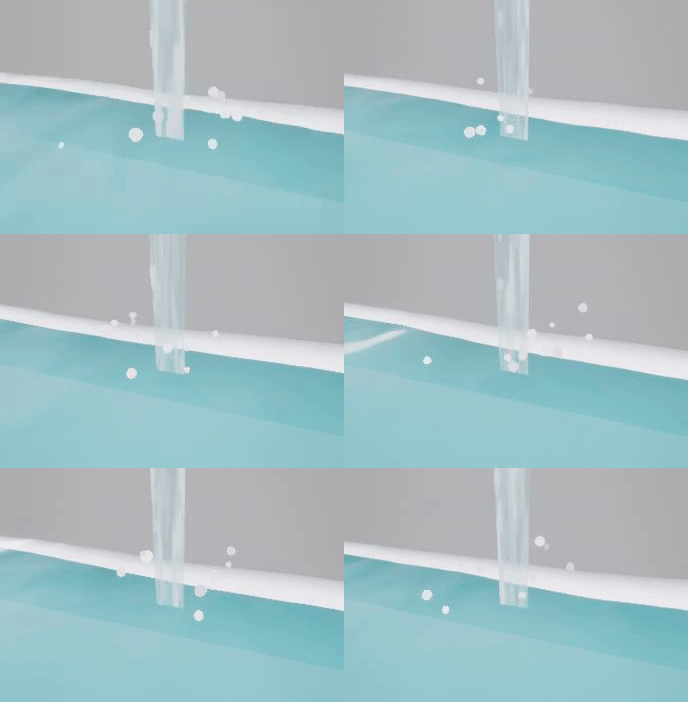
On Thursday I worked on my final particle effect, which was to be an interspersed stream of droplets falling down from the top of the waterfall based on these reference images:


My first issue was that the droplets were a little too round and looked like little beans falling down, so I tried adding a ribbon emitter to fill out the gaps at the top and taper out:

This made it a little better, but it looked a little too ribbon-like for my tastes, So I removed it again and this time focused on size by speed, which made the droplets more oval-shaped, which made them seem stretched by gravity, or in clumps rather than separate balls:


My first issue was that the droplets were a little too round and looked like little beans falling down, so I tried adding a ribbon emitter to fill out the gaps at the top and taper out:

This made it a little better, but it looked a little too ribbon-like for my tastes, So I removed it again and this time focused on size by speed, which made the droplets more oval-shaped, which made them seem stretched by gravity, or in clumps rather than separate balls:

Wednesday, October 9, 2019
Water VFX Brief: Week 2 Wednesday
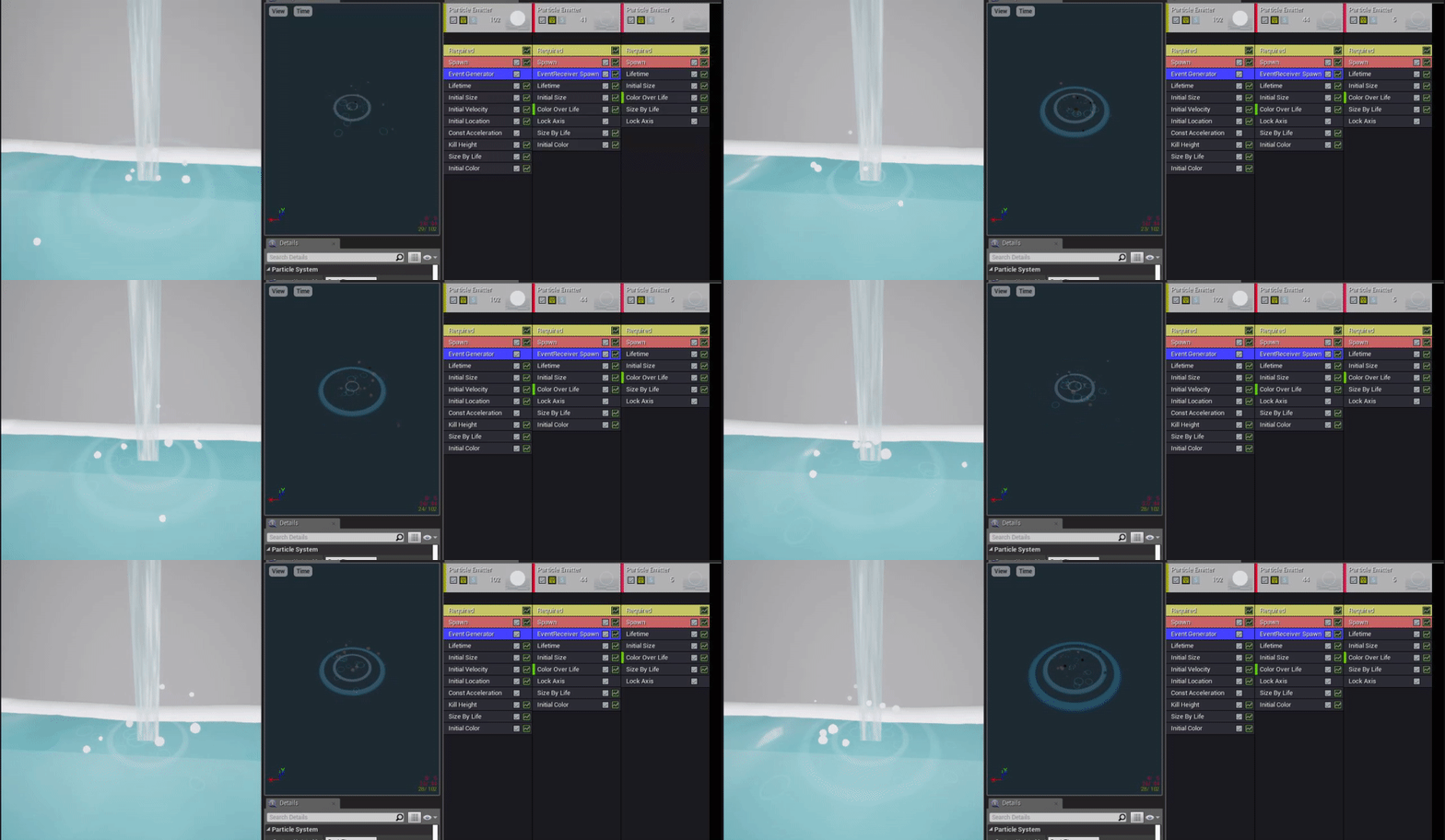
On Wednesday I continued working on the splash particle effect, making it fit better in the scene.

I worked on adding my previously made ripple effect into the same particle effect, both generating where the waterfall hit and where the splashes hit. For the larger ripples, it was as easy as having them generate from the same place as the droplets and didn't need to be reactive, but for the smaller ripples I needed them to appear to generate on collision with the water, in time with the droplets. To do this, I followed this tutorial, adding an Event Generator and EvenrReciever Spawn to the two emitters and having the ripples react to when the droplets died, which happened to be on the kill height which would also be on the water surface.
I worked on adding my previously made ripple effect into the same particle effect, both generating where the waterfall hit and where the splashes hit. For the larger ripples, it was as easy as having them generate from the same place as the droplets and didn't need to be reactive, but for the smaller ripples I needed them to appear to generate on collision with the water, in time with the droplets. To do this, I followed this tutorial, adding an Event Generator and EvenrReciever Spawn to the two emitters and having the ripples react to when the droplets died, which happened to be on the kill height which would also be on the water surface.
Tuesday, October 8, 2019
Water VFX Brief: Week 2 Tuesday
On Tuesday I started working on the particle effects!
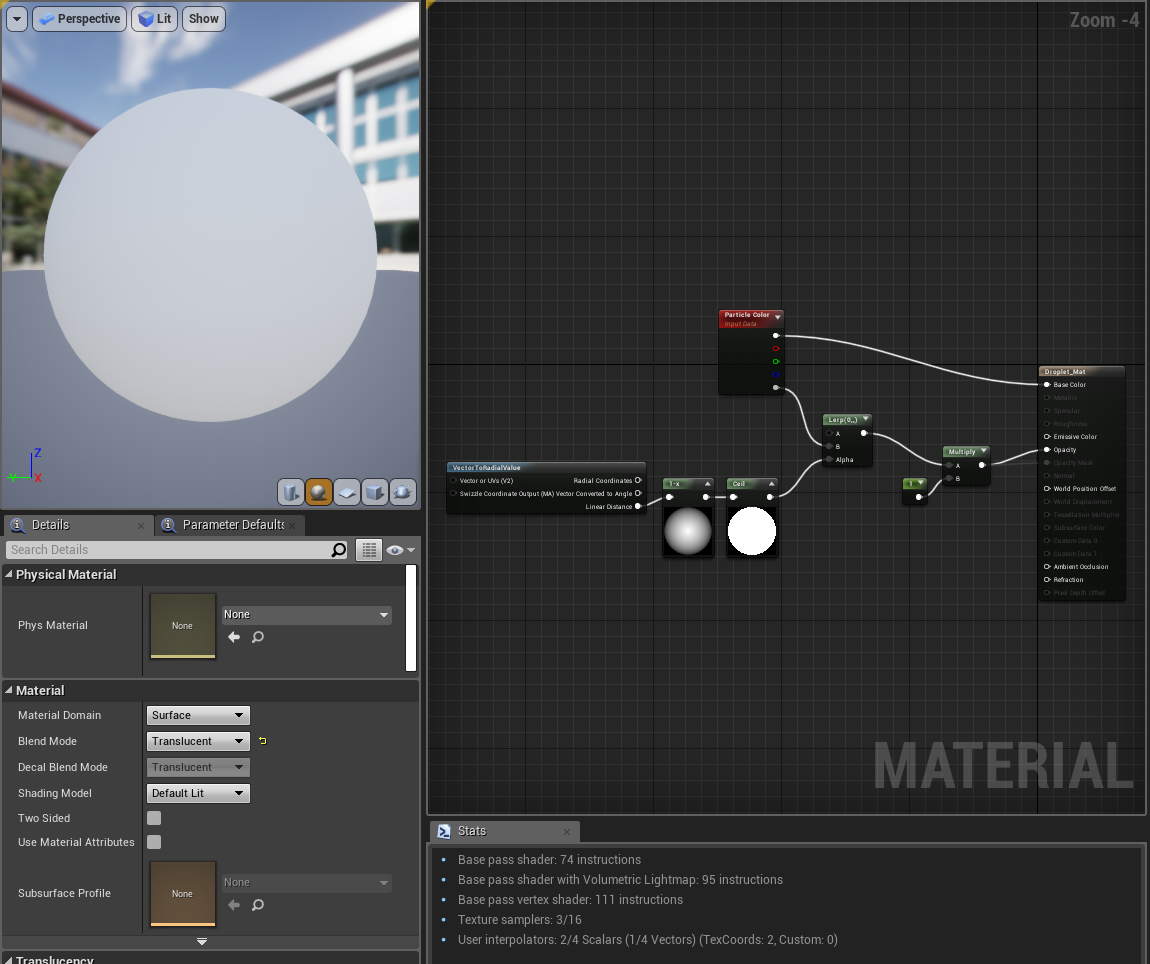
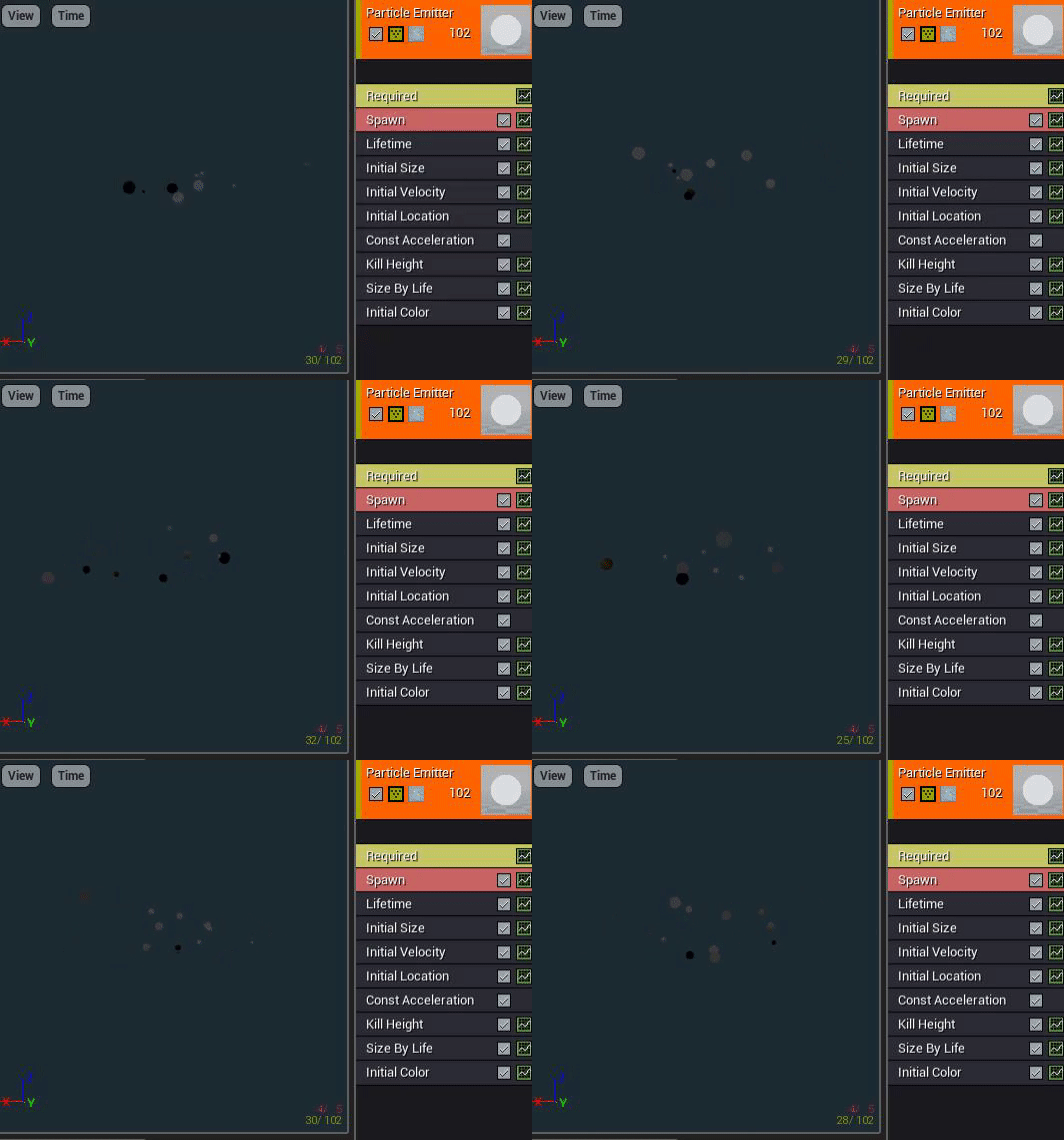
I wanted to make a splash effect for where the stream of water touched the pool beneath it, but wasn't sure which method to choose. I looked at several different methods: flipbook animations, sculpting a spash mesh in houdini and finally decided on going with bold droplet particle effects being dispersed in several different directions.

For the material itself I kept it simple, leaving most of the work up to the emitter itself.

I adjusted the size to be varied, decreasing over time, as well as velocity and constant acceleration to give the effect of being shot up into the air and then dragged back down by gravity. I also changed the initial location so that they weren't all spawning from the same spot, then added a kill height so that they wouldn't exist lower than the water plane. I adjusted the max draw count to 10 so that there wasn't too much overcrowding too.

I made the droplets solid in colour so that I could introduce the inspiration I gor from RiME into the scene more, as I wanted the water translucency and detail of the kind of water seen in Sea of Thieves, with the whimsical and bold effects seen in RiME water, such as the white foam.
I wanted to make a splash effect for where the stream of water touched the pool beneath it, but wasn't sure which method to choose. I looked at several different methods: flipbook animations, sculpting a spash mesh in houdini and finally decided on going with bold droplet particle effects being dispersed in several different directions.

For the material itself I kept it simple, leaving most of the work up to the emitter itself.

I adjusted the size to be varied, decreasing over time, as well as velocity and constant acceleration to give the effect of being shot up into the air and then dragged back down by gravity. I also changed the initial location so that they weren't all spawning from the same spot, then added a kill height so that they wouldn't exist lower than the water plane. I adjusted the max draw count to 10 so that there wasn't too much overcrowding too.

I made the droplets solid in colour so that I could introduce the inspiration I gor from RiME into the scene more, as I wanted the water translucency and detail of the kind of water seen in Sea of Thieves, with the whimsical and bold effects seen in RiME water, such as the white foam.
Monday, October 7, 2019
Water VFX Brief: Week 2 Monday
On the second week I started working on the waterfall aspect of the water feature and how it would react to the pool of water beneath it.
Monday:
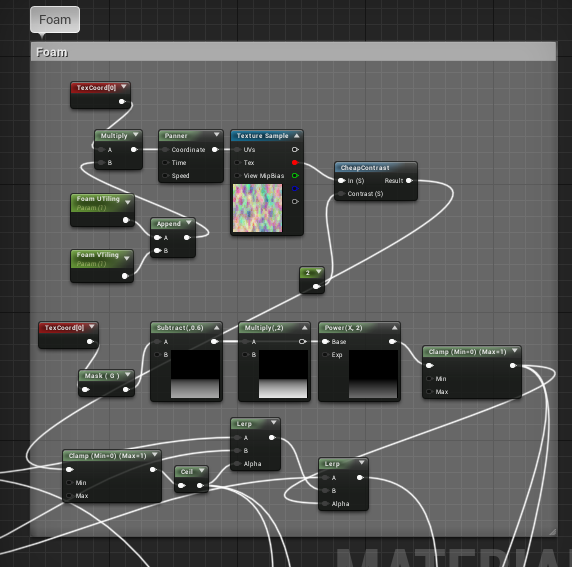
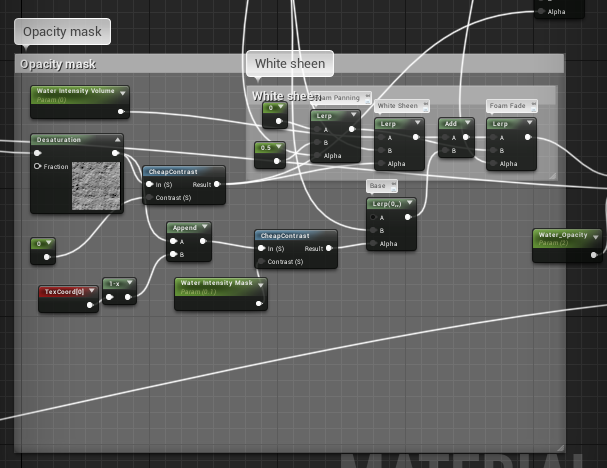
On Monday I worked on making a waterfall shader that would match with the shader I made for the rest of the water. For this, I combined nodes from my prior shader with the panning and other aspects I learnt from this tutorial as well as a toned down foam effect I learnt from this tutorial, without the displacement and only using the colour/opacity masking.


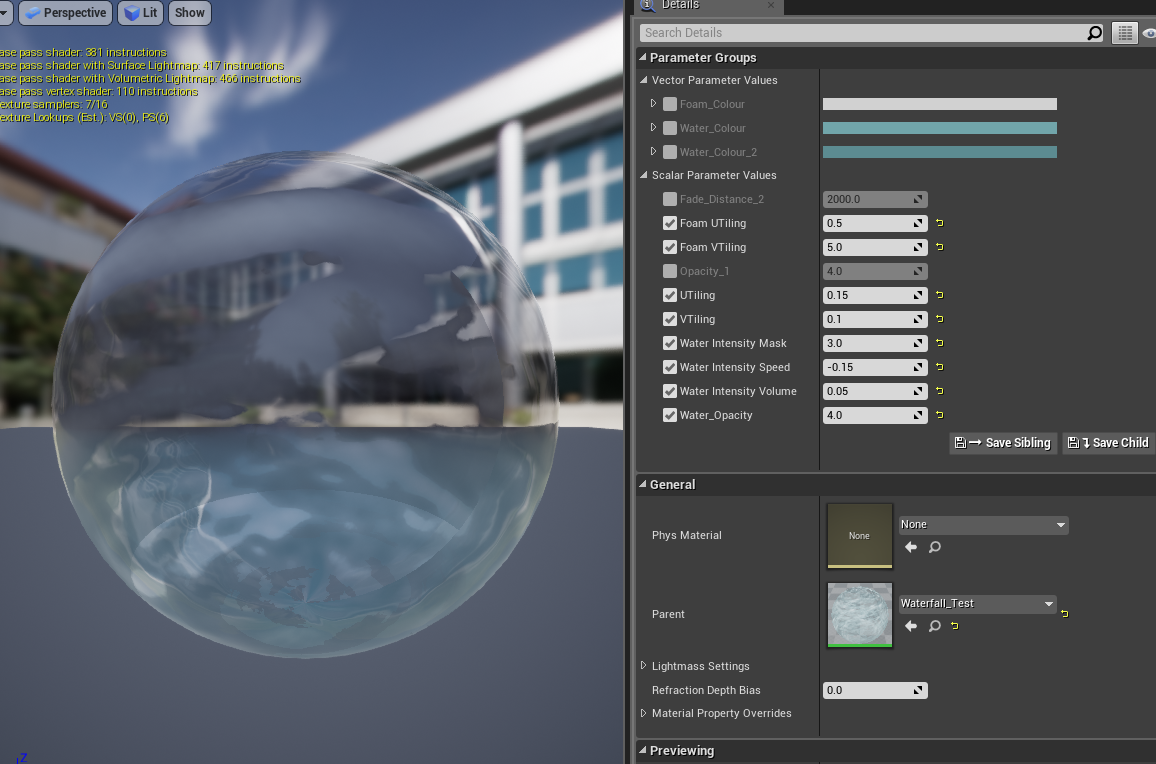
I then made a instance of this to adjust the speed, opacity and UV Tiling to fit the scale and intensity of water that I wanted to place on my test mesh, which was a simple stretched plane that I grabbed from UE4:


I decided to not spend too long trying to adjust the colour, as I thought it would be a waste of valuable time if I had to change it later when combining my final assets.
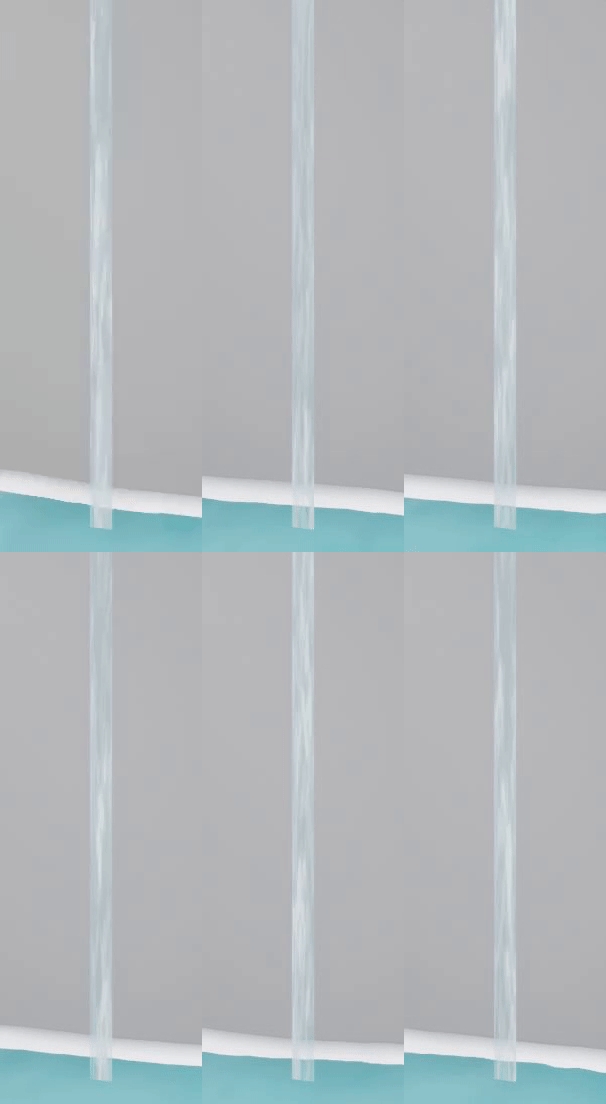
For this water shader, I mainly referenced the following images for the colour and opacity:

Monday:
On Monday I worked on making a waterfall shader that would match with the shader I made for the rest of the water. For this, I combined nodes from my prior shader with the panning and other aspects I learnt from this tutorial as well as a toned down foam effect I learnt from this tutorial, without the displacement and only using the colour/opacity masking.


I then made a instance of this to adjust the speed, opacity and UV Tiling to fit the scale and intensity of water that I wanted to place on my test mesh, which was a simple stretched plane that I grabbed from UE4:


I decided to not spend too long trying to adjust the colour, as I thought it would be a waste of valuable time if I had to change it later when combining my final assets.
For this water shader, I mainly referenced the following images for the colour and opacity:

Subscribe to:
Posts (Atom)